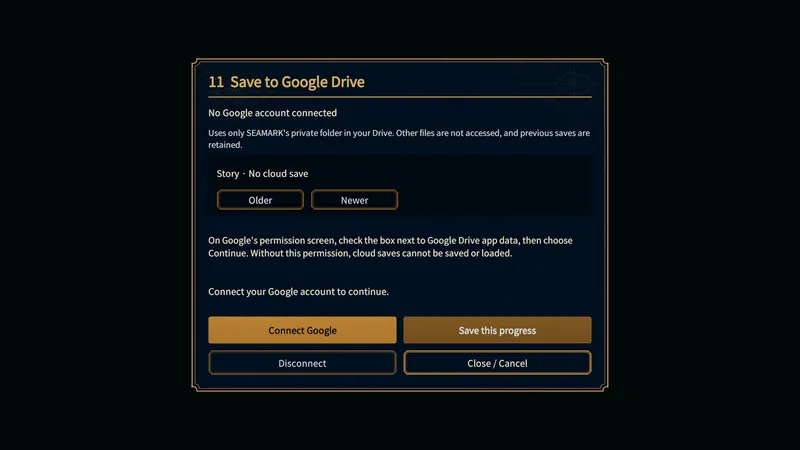
Get started in Seamark with the basics of sailing between ports, trading goods, and running your fleet.
Seamark: Beginner’s Guide
Story Mode vs Free Play
Story Mode introduces the world and its systems a little at a time. Free Play lets you set your own goals and routes from the start. Sailing, trade, and ship management work the same in both. The English UI calls Free Play FREE VOYAGE.
How to Use
- Story Mode runs through Chapters 1 to 10, moving through the regions in a set order. The story and your current quest point to your next destination and task, and systems unlock as you reach each stage. Pick it if you like learning regions and systems one at a time.
- Free Play has no chapter locks on any system from the start. You decide where to go and what to do, with no set story order or route. Focus on trade, exploration, or switch between exploring and fighting at your own pace. You still need money, ships, crew, and provisions as usual, and the demo’s content limits still apply.
- On your first Free Play voyage, check your starter ship, hire enough crew, buy provisions, and pick a nearby port. Trade a small cargo or explore a new route before you try a long voyage.
- Each mode’s Continue button loads that mode’s automatic save. Manual slots 1–10 are kept apart for Story Mode and Free Play. Google Drive shared slot 11 is split by mode too. See the Google Drive Shared Saves section below for how to connect.
What to Check
- You pick a mode when you start a new game. Loading a save puts you back in the mode stored in it. Starting a new game in the same mode can overwrite that mode’s automatic save, so make a manual save first if you want to keep your current journey.
- The demo starts in Lisbon. Its Free Play covers 25 ports in the Chapter 1 region, including Madeira, Iberia, and the Mediterranean. Companions are limited to grades C and D, equipment to grade C and below, and fleet dispatch is not available. Free Play does not lift these demo limits.
Game Screen
Captain Creation
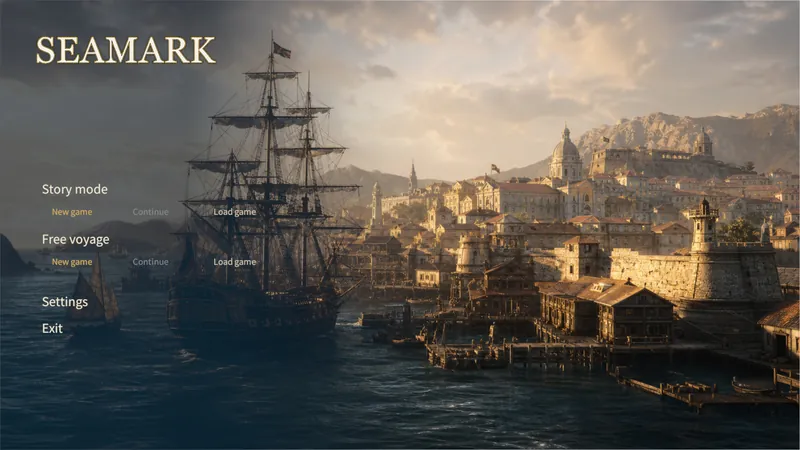
You choose your captain’s look, name, and starting specialty. The specialty gives you a head start in one field. It does not stop you from exploring, trading, or fighting.
How to Use
- In Story Mode, the opening story leads you to character creation. In Free Play, it opens as soon as you start a new game. Choose an appearance.
- Open the name field, type a name, and confirm it in the dialog. Closing the dialog without confirming leaves this step unfinished.
- Compare Adventure, Commerce, and Combat. The field you pick starts with 400 experience, so choose the one you want to grow first. It is a starting bonus, not a permanent experience multiplier.
- Review appearance, name, and specialty together, then confirm. Once in the game, check your ship, equipment, and current objective before you set sail.
What to Check
- If you can’t move on, reopen the name dialog and confirm a name that isn’t empty. Then make sure you picked an appearance and a specialty.
- The specialty only adds starting experience in one field. You can still raise all three through their own activities.
Game Screen
Town Navigation
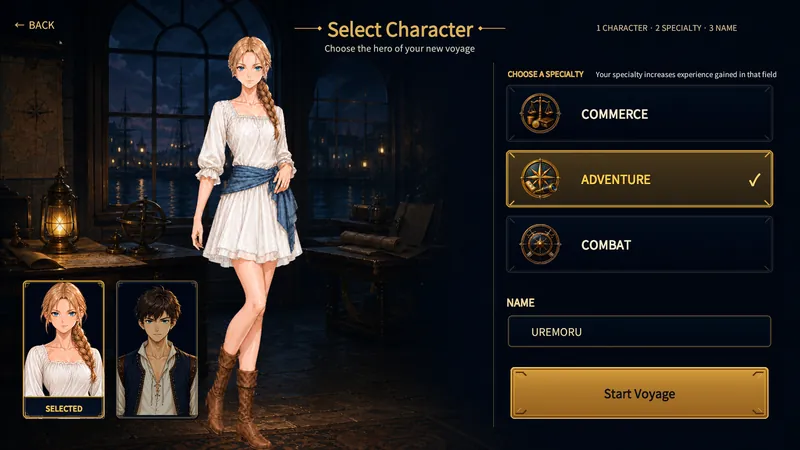
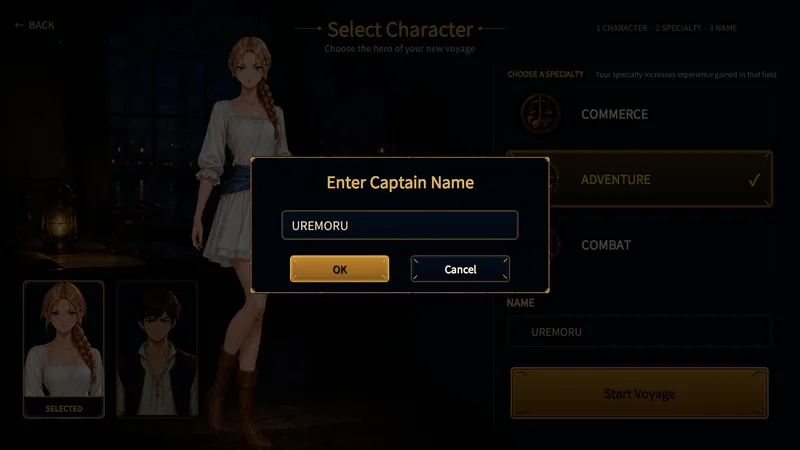
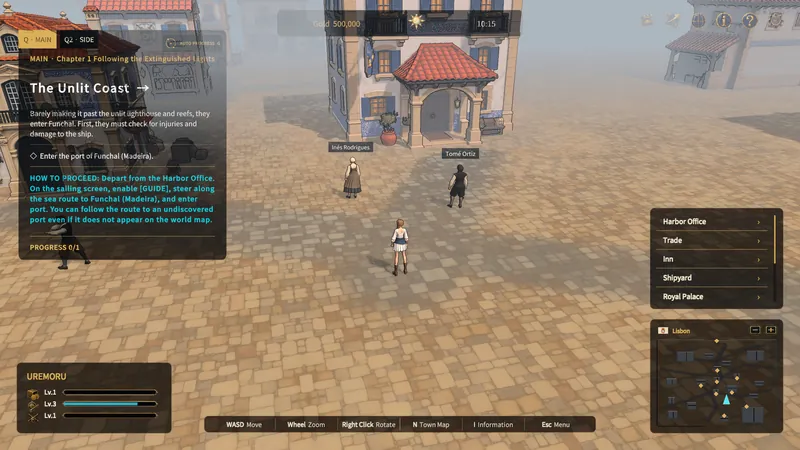
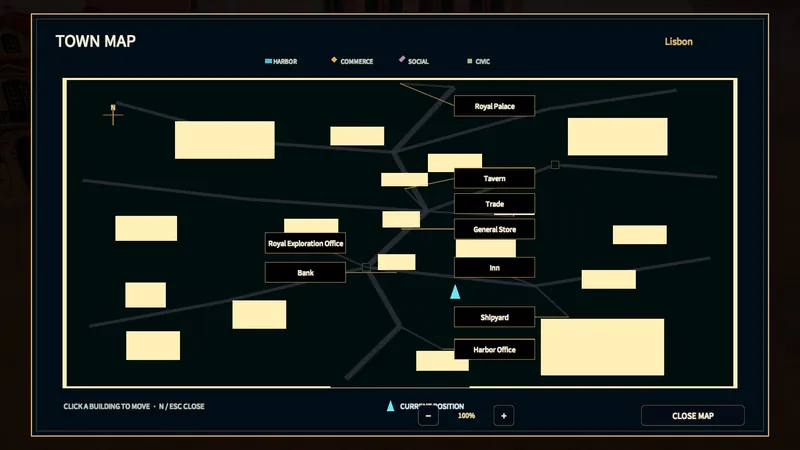
Ports are where you prepare your fleet, trade, recruit, and work on local objectives. The town map takes you straight to a service, so you don’t have to search the streets.
How to Use
- Check the tracked objective on the HUD. In Story Mode it shows your next chapter task. In Free Play, pick any service or destination that fits your plan.
- Open the town map and select a building to walk there automatically. At the building, interact with the entrance to open its services.
- Quest auto move follows your tracked task. If the target is in another port, it leads you to the Harbor Office. When to depart is still up to you.
- Each building has its own job:
- Trading Post: cargo
- General Store: character equipment
- Shipyard: hulls and cannons
- Tavern: sailors and companions
- Inn: lodging and work
- Bank: money and insurance
- Harbor Office: supplies, investment, and departure
- Royal Exploration Office: Lisbon only
Which buildings and services are open can depend on story progress.
- On Windows, talk to a resident by walking up and pressing Space, or by left-clicking them. Clicking a resident who is farther away walks you to them first. Follow the on-screen interaction prompt, since residents and building entrances are separate targets.
What to Check
- Moving by hand cancels automatic walking. If you stop short of the entrance, get closer and interact again.
- If a building doesn’t match your objective, select the current quest in the journal. Fleet dispatch, equipment, and the treasure map journal open from their own menu or HUD buttons. They are not buildings you need to find.
Game Screen
Sailing Between Ports
A safe trip needs enough crew, provisions, and a sound hull. Keep routes short while you learn the controls, and carry extra supplies in case of delays.
How to Use
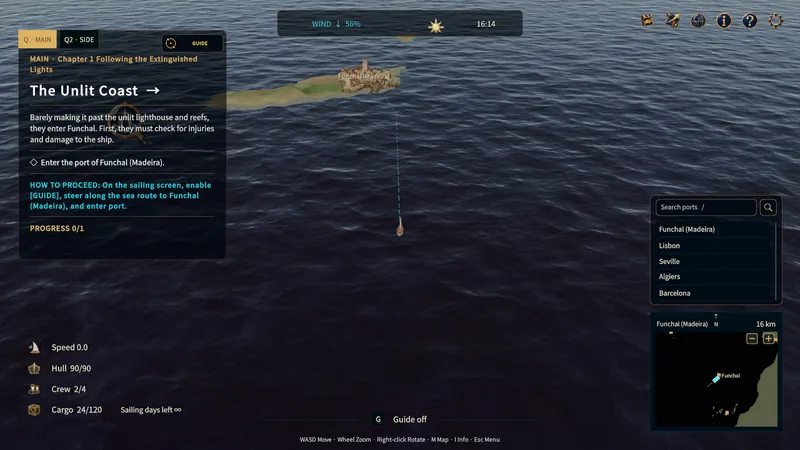
- In the Harbor Office voyage plan, check the destination, estimated sailing days, consumption, and reserve supplies. At sea, keep an eye on speed, hull, crew, cargo, and provisions.
- Pick a port you have already visited from the port list to start auto sailing to its arrival point. A new port only shows up in that list after you reach and visit it.
- Quest guidance draws a route to your tracked objective. This line only shows the direction. Auto sailing starts only when you pick a port from the list.
- Watch the route as you travel. Steering or changing throttle by hand cancels auto sailing. When you are close enough, use the arrival prompt to enter port.
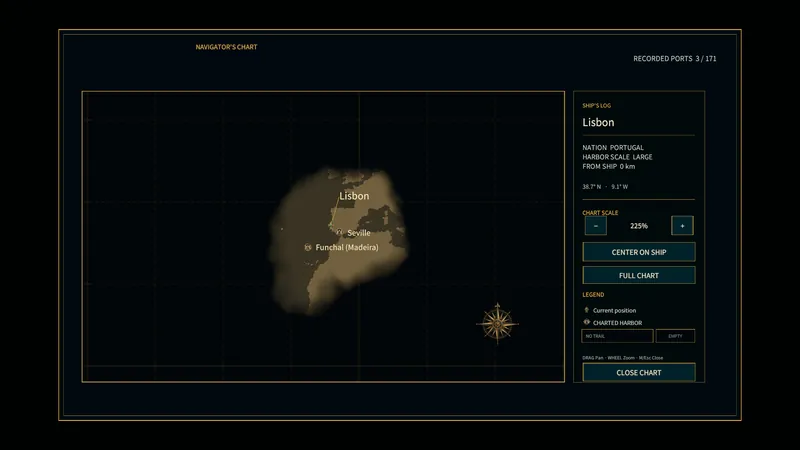
- Open the world map to see your ship’s position, explored waters, and visited port details. Unexplored areas stay under fog. Selecting a marker only shows its details. To enter, use the navigation or arrival action.
- Use the sailing trail controls to show or hide the route on the map. Clear Log asks for confirmation, then deletes only the visible trail. Visited ports and explored waters stay recorded, and a new trail starts from where you are.
What to Check
- No arrival prompt? Move closer to the port’s arrival point. A port marker in the distance doesn’t mean you can enter yet.
- If auto sailing warns that supplies are short, decide whether to keep going or stop. When a visited port is within reach of your remaining provisions, the game also offers a stopover. Resupply there, then check the plan to your original destination again.
- The HUD’s wind arrow and strength percentage change your forward speed. Wind from behind helps, and a headwind slows you down. The listed top speed is not reached on every heading.
Game Screen
Quests
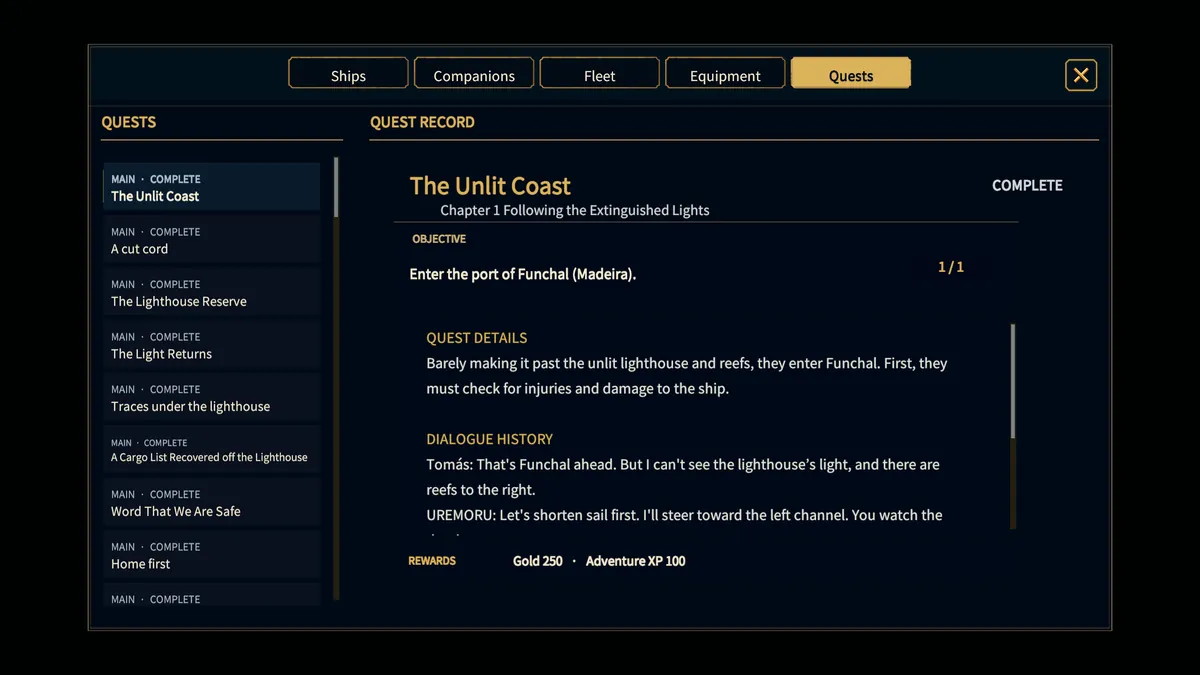
The journal shows the chapter’s larger goal apart from the action you need to take right now. Story Mode follows a chain of chapter quests. Free Play doesn’t need the story.
How to Use
- Open Information > Quests and pick an entry. The detail panel shows its current objective and progress.
- Note the destination, the person or building involved, and any goods or conditions needed. Finish that action before heading to the next chapter location.
- Track the quest and follow its location guidance. In town, auto move walks you to the target. If the target is in another port, it takes you to the Harbor Office first.
- After a delivery, conversation, or battle, check the journal again to see if the objective changed. Finished quests stay in the history, so scroll down the list to find them.
What to Check
- If a quest seems stuck, check both the amounts and the location. Having an item doesn’t always count as delivering it or finishing a conversation.
- Having no active chapter quest in Free Play is normal. Set your own next goal: trade, exploration, or growing your fleet.
Game Screen
Controls
Controls differ in town, at sea, and in combat. Follow the on-screen prompts and the map, and keep your objective and fleet condition in view.
How to Use
- In town, move with WASD or left-click. Choose a building from the facility list or town map to walk to its entrance automatically.
- At sea, change speed and heading with WASD or the arrow keys. Press E when the entry prompt appears near a port.
- Zoom with the mouse wheel and rotate the camera with the right mouse button. Other keys:
- N: town map
- M: world map (at sea)
- I: information
- Esc: system menu
- On a controller or touch screen, follow that device’s prompts. Naval combat has its own movement and firing controls, so check those separately.
What to Check
- Moving or steering by hand can cancel auto walking or auto sailing.
- If controls stop responding, close any open dialog, menu, or search field and try again.
- If you disconnect the last controller during play, the game pauses. Reconnect one and it resumes on its own. On Windows, press Enter or Esc, or choose Continue with Keyboard, to switch to keyboard and mouse. On mobile, tap the on-screen button to keep playing with touch controls.
Game Screen
Provisions and Emergency Rescue
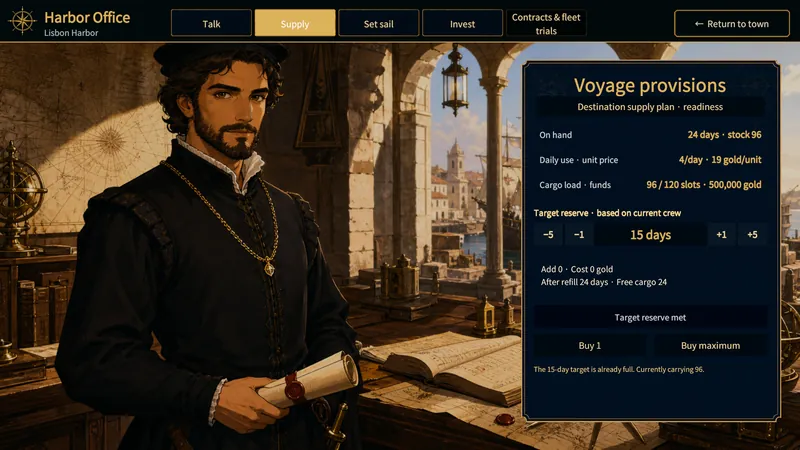
Your fleet uses provisions every day at sea, and they take up the same cargo space as trade goods. Plan for the fleet you are actually taking and the expected length of the trip.
How to Use
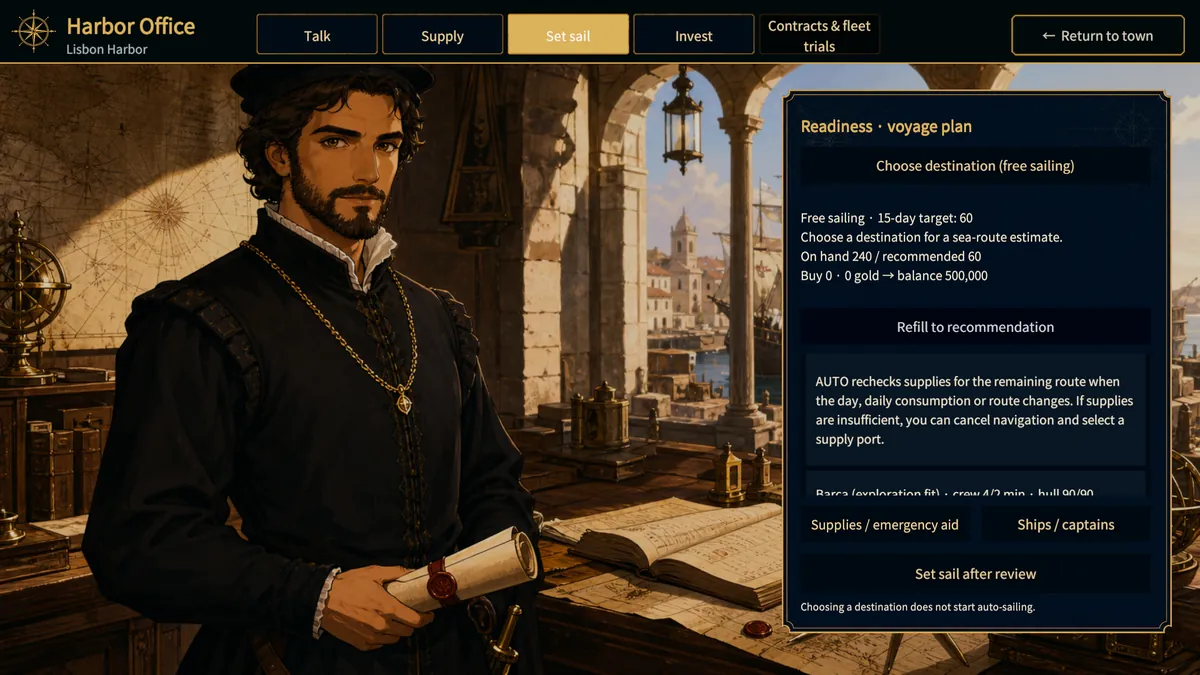
- At the Harbor Office, check the destination, target supply duration, estimated consumption, and reserve provisions in the departure plan.
- More ships or crew can raise daily consumption. Check the plan again after changing your formation or hiring crew.
- Buy enough for your target duration. Low gold or limited cargo space can stop a full purchase, so check what you actually got.
- At sea, watch the days remaining and supply warnings. If the game offers a visited port you can reach, resupply there and plan the route again. If supplies run out, use emergency rescue to get back to port.
What to Check
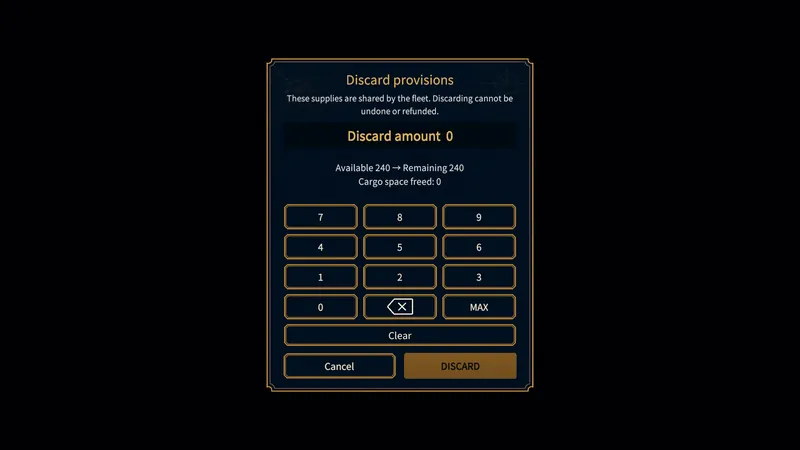
- In port, you can discard any amount of provisions you don’t need to free up cargo space.
- Rescue costs a fee. If you can’t pay for supplies in port, look at inn work and harbor relief supplies.
Game Screen
Trade Goods
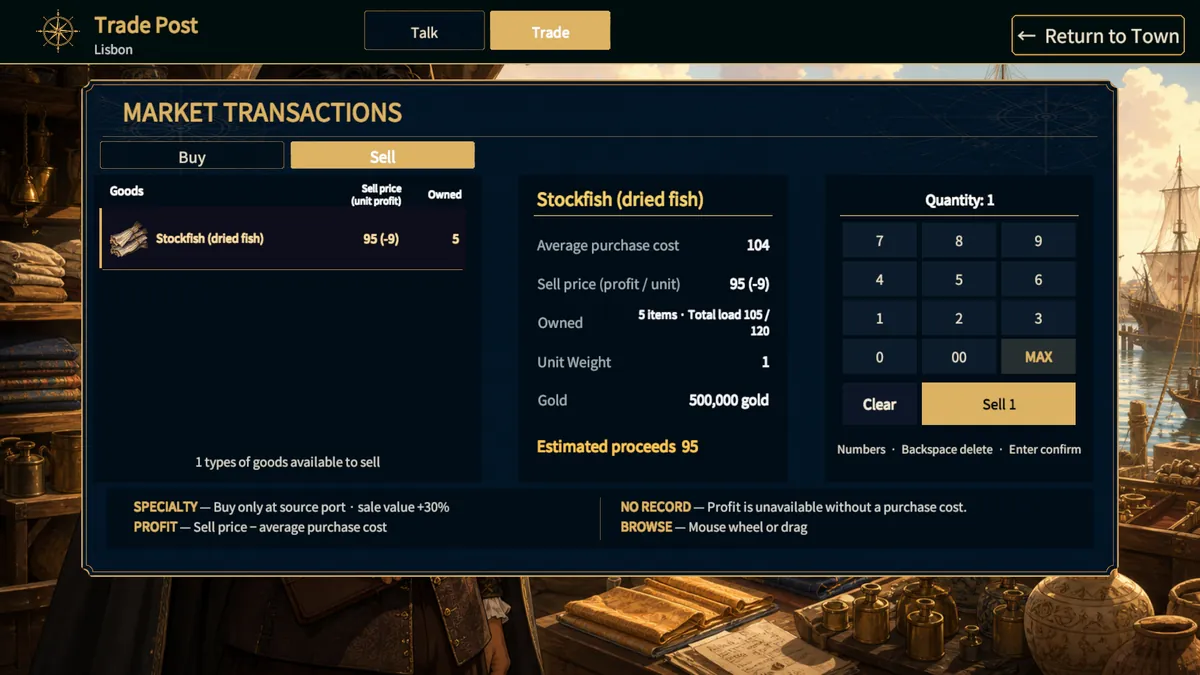
Trade goods take up cargo space. Your profit is the selling price minus what you paid, so check both before you spend.
How to Use
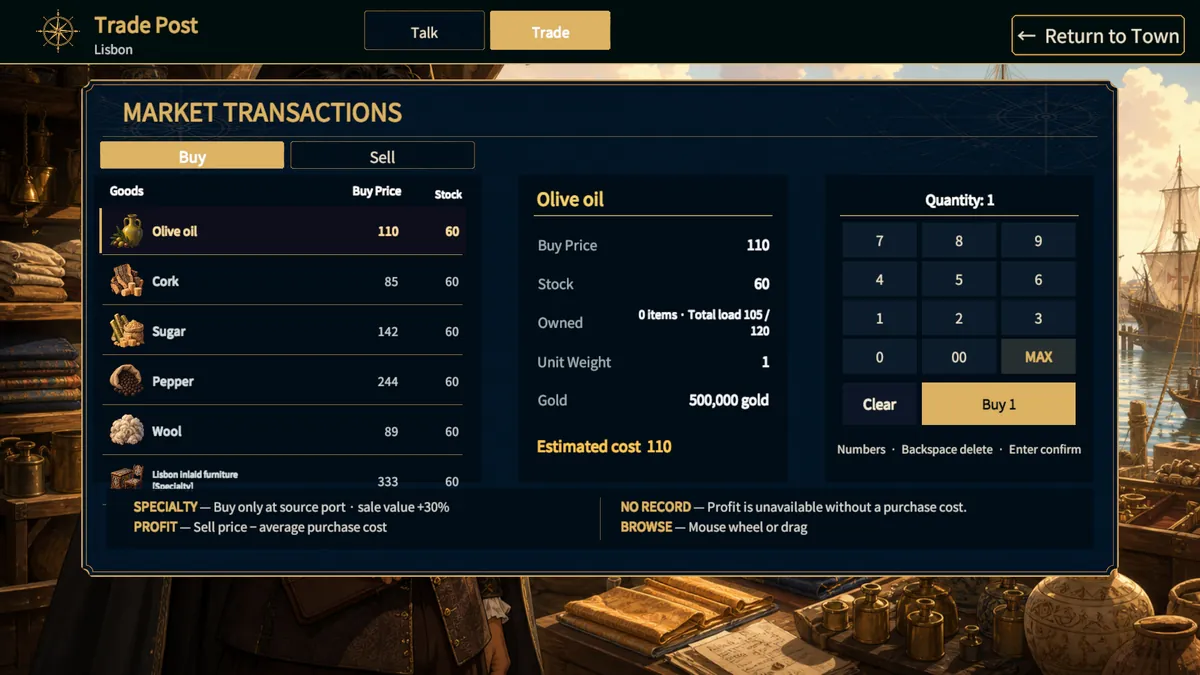
- At the Trading Post, open Trade > Buy. Pick a local good and check its unit price, stock, and your free cargo space.
- Type a quantity on the keypad or press MAX. MAX stops at whatever your money, the stock, or your hold allows. Lower it if you need money for crew, repairs, or provisions.
- Check the total and confirm. Sail to another port, open Sell, and pick cargo you own. Compare the offered unit price with your average purchase cost.
- Set how much to sell and confirm once you have checked the proceeds. For example, if you buy 10 units at 100 and sell at 130, you make 300 gross profit before voyage costs.
What to Check
- A negative unit profit means the buyer offers less than you paid. Try another market, or take the loss if you need money or space quickly.
- Buying needs stock, money, and free cargo space. Markets restock as game days pass. Specialty goods can only be bought at their home port and get a 30% bonus to their sale value. Keep space and money aside for provisions, crew, and repairs.
Game Screen
General Store
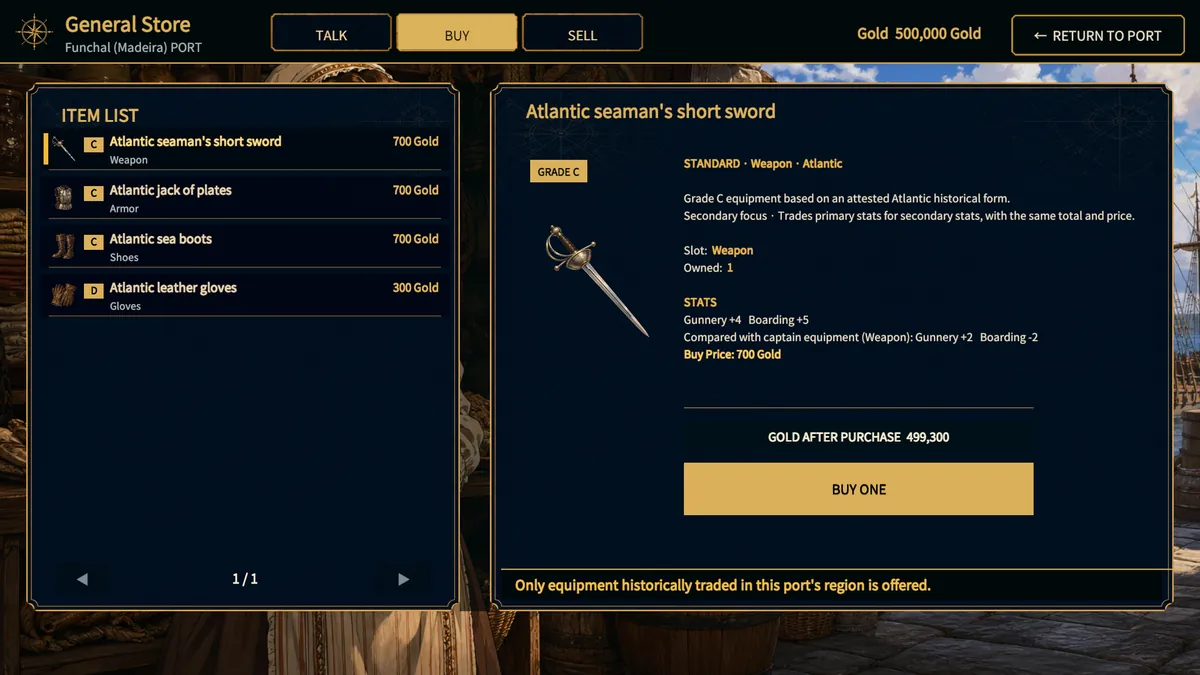
The General Store sells grade C and D character equipment from the port’s historical region. Higher grades come from other activities, such as dispatch and treasure. Bought items go to storage, and you must equip them before their bonuses count.
How to Use
- Choose Buy and pick an item. Read its slot, attributes, description, and price, since the name and grade alone don’t tell you enough.
- Compare it with the character’s current gear in Information > Equipment. Make sure you will still have enough Gold for the next voyage, then buy.
- Go back to Information > Equipment, pick the character and the matching slot, and equip the item. Check the new total attributes.
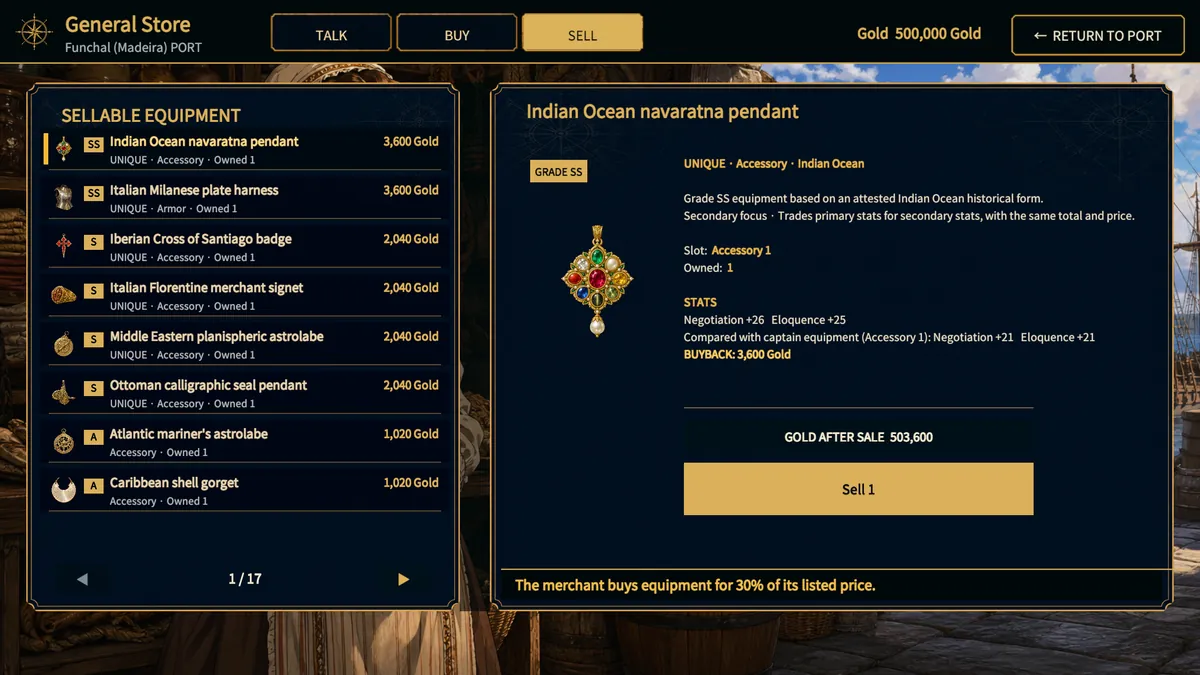
- Use Sell for stored equipment you no longer need. The merchant pays 30% of the listed price per item. Pick the right item and confirm a one-item sale. Repeat only if you mean to sell more.
What to Check
- If your attributes didn’t change after buying, check whether the item is equipped. Owning an item and wearing it are not the same.
- Equipped items don’t appear in the sell list, so unequip them in Information > Equipment first. Quest-only reward equipment can’t be sold. Sell trade cargo at the Trading Post instead.
Game Screen
Harbor Office Preparation
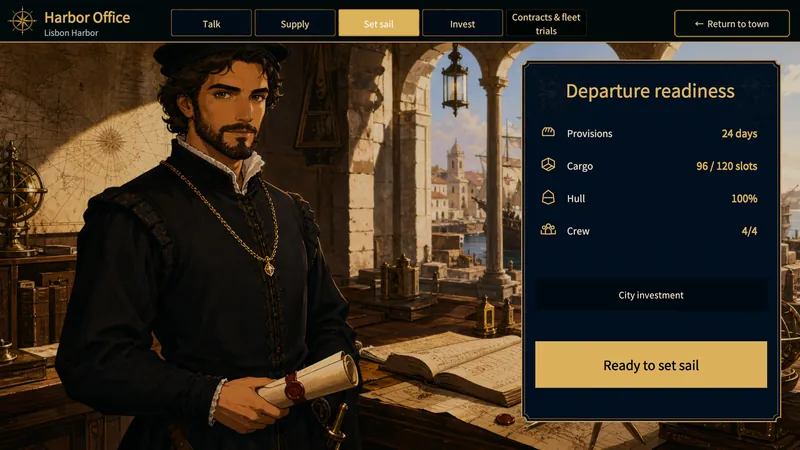
The Harbor Office checks your supplies for the destination and your fleet’s readiness in one place. Look at estimated days, reserve provisions, and remaining gold, then sort out crew, repairs, and captains before you leave.
How to Use
- Choose a destination in the voyage plan. Compare estimated sailing days, consumption, reserve supplies, and current stores. With no destination set, the plan uses the stock target in days you selected.
- Before buying supplies, check the amount, the cost, and how much gold you will have left. Gold and cargo space can limit a full refill. If a stopover is offered, check the supply plan for that leg first.
- For each sailing ship, check current and maximum hull, minimum crew, cannons, and captain requirements. The preparation entries take you to crew recruitment, the shipyard, or fleet formation. Come back to the plan afterwards.
- Depart once supplies and the fleet are ready. Your destination and chosen stopover are saved. Planning a voyage doesn’t start auto sailing by itself. The port autopilot at sea only works for ports you have already visited.
What to Check
- You get warnings for ships under 25% hull and for low provisions. If you can’t afford even one day of provisions, the Supply tab may offer relief of up to five days of stores, limited by cargo space. Taking relief moves time forward 24 hours. It doesn’t repair ships or hire crew.
- Check consumption again after changing ships, crew, or equipment. Estimates use a real sea route and your fleet’s performance, so steering, combat, and detours can change the trip.
Game Screen
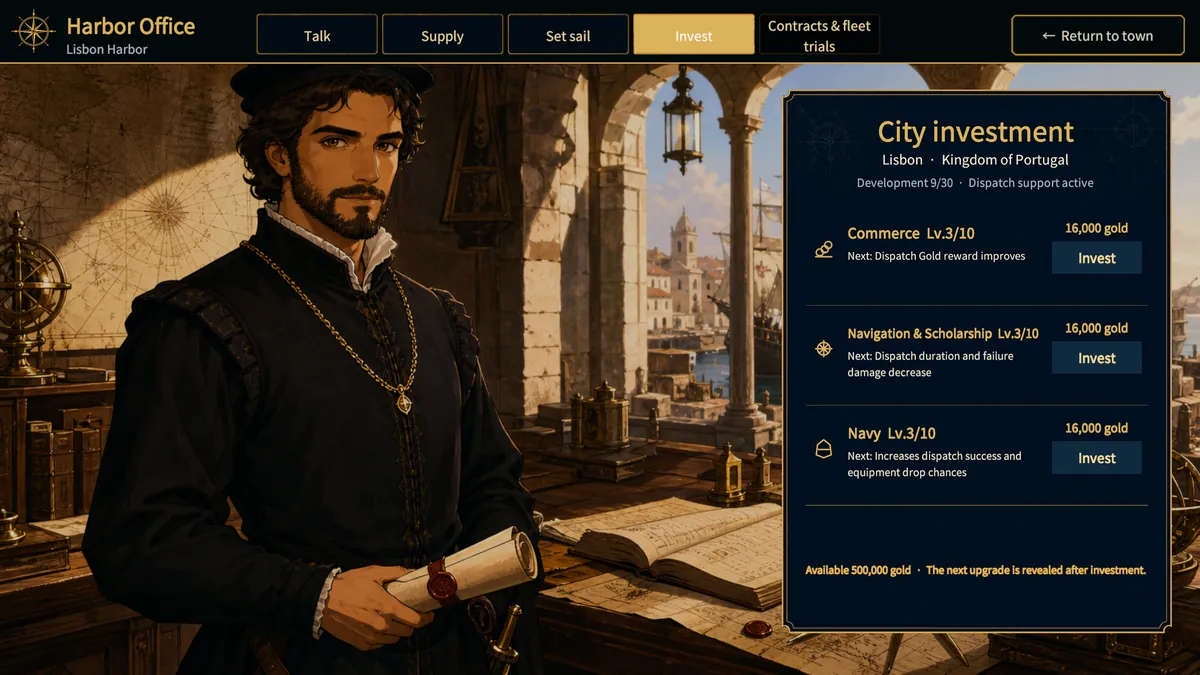
Port Investment
City Investment has three branches, and each port develops them separately. Their bonuses help fleet dispatch, so invest in the ports you plan to send expeditions to.
How to Use
- Open Harbor Office > Invest. Each branch shows its current level, the next level’s cost, and what you will gain.
- Pick a branch:
- Commerce: higher dispatch Gold rewards
- Navigation & Scholarship: shorter trips and less damage on failure
- Navy: better success and equipment chances
- Pay the cost to raise one branch by one level. The next level costs 1,000 × level² Gold, so going from level 3 to 4 costs 16,000.
- Go back to the dispatch planner and compare the updated plan. Branches cap at level 6 in small ports, 8 in medium ports, and 10 in large ports.
What to Check
- Investment levels belong to the port you invest in. They improve dispatches to that port and can unlock equipment grades in the dispatch token shop. A qualifying visited port unlocks that shop grade everywhere, but it doesn’t raise other ports’ investment levels.
- A branch at its cap can’t go higher. If it is below the cap but the button is unavailable, compare your Gold with the next cost.
Game Screen
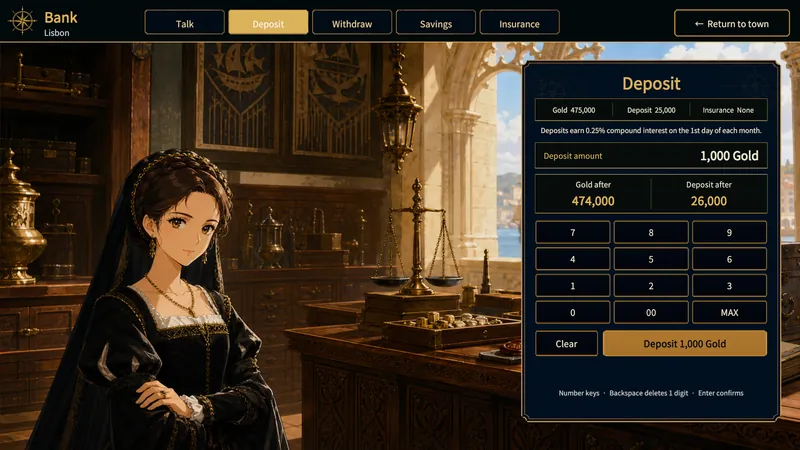
Deposits, Withdrawals, and Savings
The bank keeps carried Gold, deposits, and fixed-term savings apart. Keep money on hand for voyages instead of locking it all in a long savings plan.
How to Use
- Open Deposit, enter an amount on the keypad or with MAX, and confirm to move carried Gold into the bank. Check both balances afterwards.
- Use Withdraw to move deposit money back to carried Gold for spending. You can’t take out more than your deposit balance.
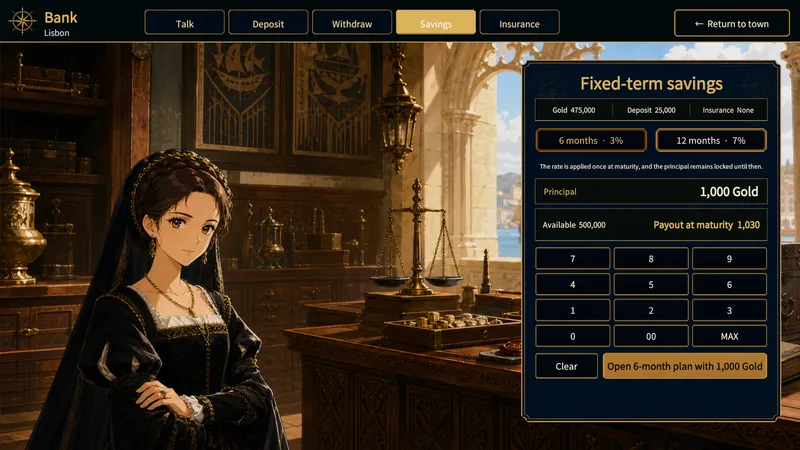
- In Savings, compare the two plans. The 6-month plan pays 3% and the 12-month plan pays 7%, each for the full term. Only one plan can run at a time.
- Choose the principal and confirm. With 1,000 Gold, you get 1,030 or 1,070 at maturity. The payout goes into deposits, so withdraw it if you want to spend it.
What to Check
- A game month is 30 days. Savings can’t be withdrawn or cancelled early, and only one plan can be active. Check the remaining term and maturity amount before you commit. Opening a plan uses carried Gold first, then deposits if needed.
- Insurance renewal is paid from deposits. Keep enough there for the premium, because carried Gold and savings won’t cover it.
- On the first day of each game month, regular deposits earn 0.25% compound interest, rounded down to whole Gold. Carried Gold and savings principal don’t earn this interest.
Game Screen
Marine Insurance
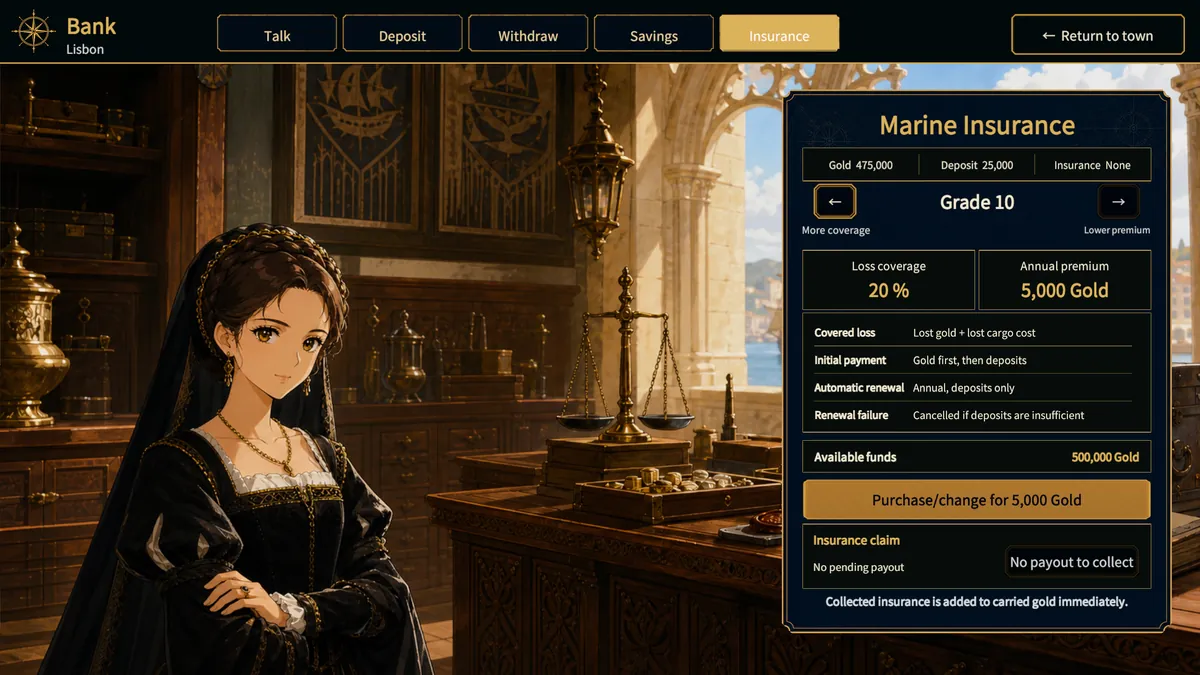
Marine insurance can pay back eligible lost Gold and cargo purchase cost after a loss at sea. It has a yearly premium and does not replace repairing or preparing your ship.
How to Use
- Open Bank > Insurance and compare grades. Grade 1 covers 90% for 300,000 Gold a year. Grade 10 covers 20% for 5,000. A higher grade number means a cheaper policy with lower coverage.
- Choose a grade and buy or change the policy. This payment comes from carried Gold first, then deposits if needed.
- The policy renews every 360 game days, paid from deposits only. If deposits run short, the policy is cancelled, so keep enough there.
- After an eligible loss, go back to the Insurance tab. Check the lost Gold, cargo cost, and pending payout, then claim it. The payout goes to carried Gold.
What to Check
- Estimate how much value you need to protect before paying for a costly grade. Coverage is based on the eligible loss and cargo cost, not on the price you hoped to sell for.
- If there is no payout, check the pending claim panel and your policy status. Having a policy doesn’t create a claim by itself.
Game Screen
Inn
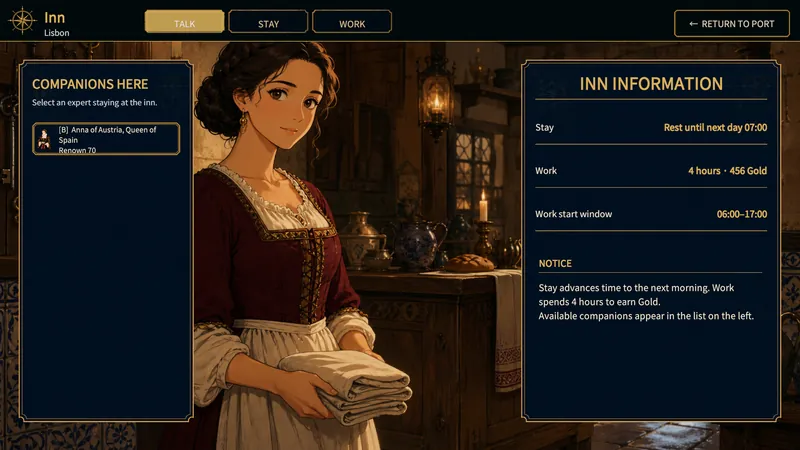
The Inn lets you pass time and earn small wages in port. It helps when you need to wait for morning or rebuild a little spending money.
How to Use
- Open Stay and check the time. Resting moves the clock to 07:00 the next morning, so think about anything that depends on time passing before you confirm.
- Open Work to see the wage and whether a shift is available. A shift lasts four hours and must fit between 06:00 and 21:00, so the latest start is 17:00.
- Start a shift if one is open. When it ends, check the time and your Gold before working again or heading back to sea.
- If companions are available at the Inn, pick one to see their abilities, recruitment chance, and attempt cost. You pay the cost even if the attempt fails. After a success, assign them in Information > Companions.
What to Check
- If Work is unavailable, check the clock first. Resting until the next morning opens a new work window.
- Companions have their own availability and requirements. An empty list doesn’t stop you from using Stay or Work.
Game Screen
Crew and Companion Recruitment
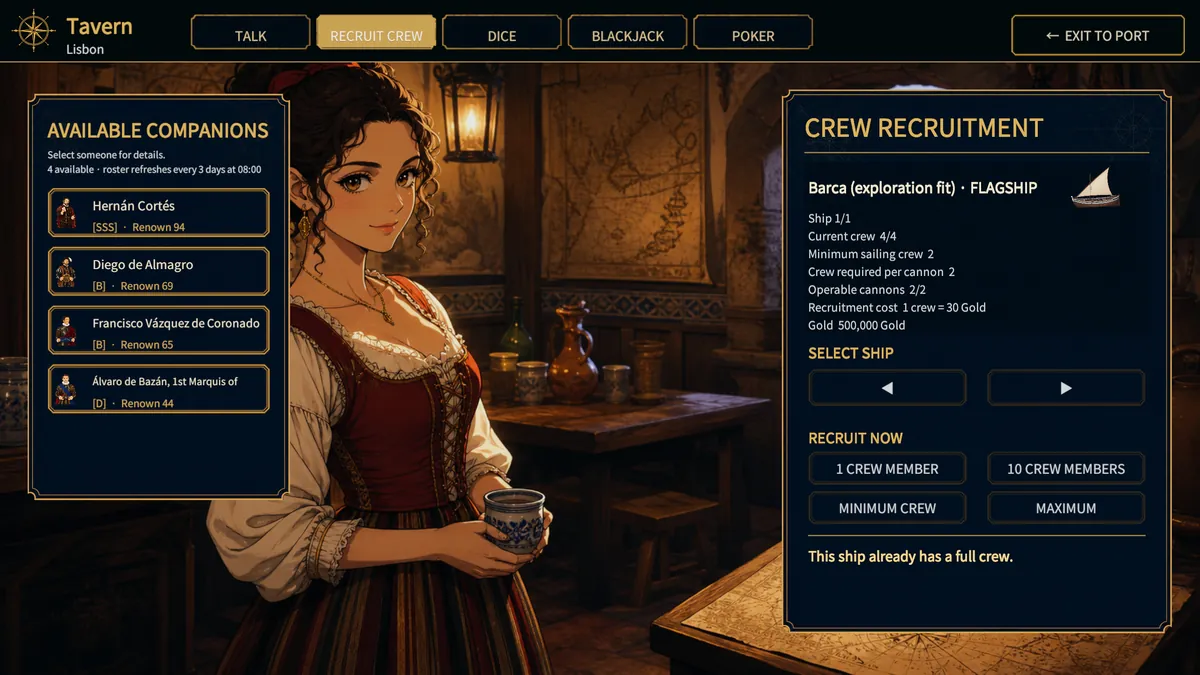
Sailors run your ships. Named companions bring their own abilities and roles. Recruiting a companion doesn’t fill a ship’s sailor requirement.
How to Use
- Open Recruit Crew and use the ship arrows to pick the right ship. Compare current crew, minimum operating crew, maximum crew, and operable cannons. Each sailor costs 30 Gold.
- Hire one sailor, the quick group, a minimum crew refill, or MAX. Minimum refill hires just enough to reach operating crew. MAX is limited by your Gold and the ship’s crew capacity. Check the new count afterwards.
- Pick a named companion to see their abilities, recruitment chance, and attempt cost. A failed attempt still costs the listed amount. Your fleet’s eloquence and recruitment abilities affect the chance. An introduction voucher, where offered, adds 15 percentage points, up to 95%.
- After recruiting, open Information > Companions and assign the companion to a ship slot. Sailors and named companions are separate, so a new companion doesn’t add to the ship’s sailor count.
What to Check
- Minimum crew lets the ship sail, but may not be enough to fire every mounted cannon. Compare the operable cannon count and hire more sailors if needed. Bigger crews also use more provisions.
- In the demo, only C and D grade companions are available. A character may also be missing or already recruited. Ships and companions on dispatch can’t be reassigned until you collect their return reward.
Game Screen
Tavern Games
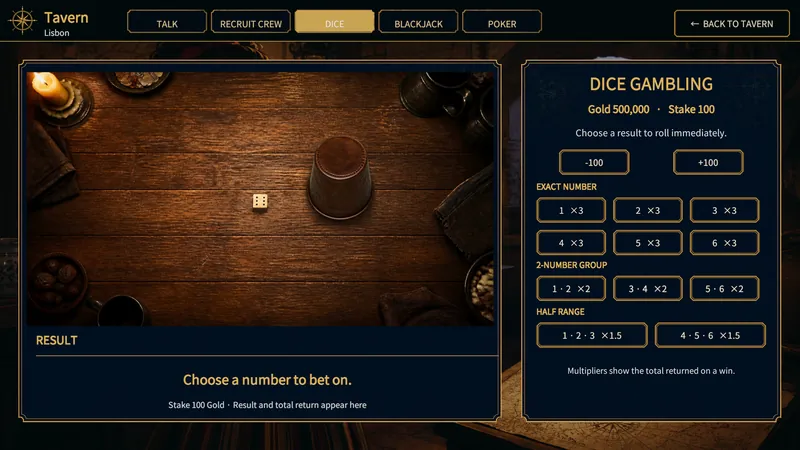
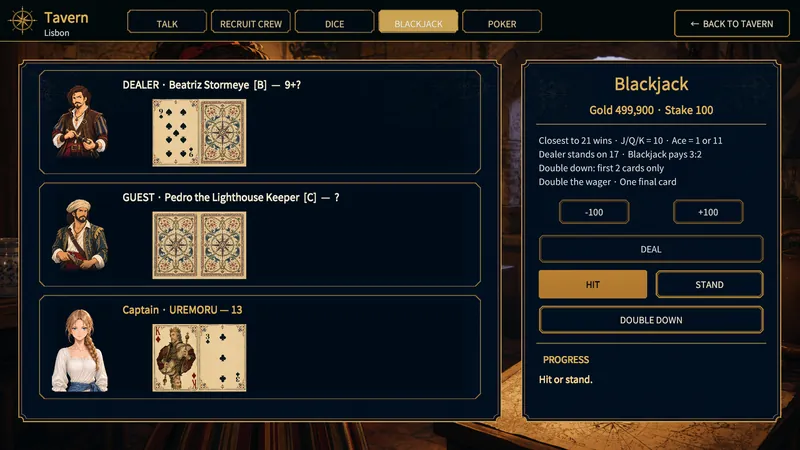
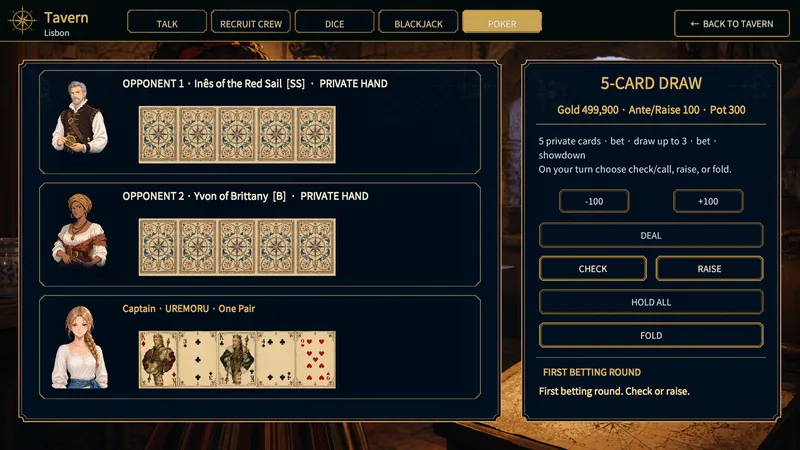
In the Windows edition, the Tavern has dice, blackjack, and five-card draw poker. The Google Play edition doesn’t include these three games. Set aside your voyage money before you bet.
How to Use
- In Dice, choose your bet before the roll. An exact number pays ×3, a pair of numbers ×2, and half the range ×1.5. These multipliers are the total you get back, stake included.
- In Blackjack, try to get closer to 21 than the dealer without going over. Number cards count as their number, J, Q, and K count as 10, and an Ace counts as 1 or 11.
- Hit draws another card, and Stand ends your turn. Double Down works only with your first two cards and enough Gold for a second stake, and it draws exactly one last card. The dealer stands on 17, soft 17 included. A natural blackjack pays 3:2 profit, a normal win returns twice your bet, and a tie returns your bet.
- Poker runs in this order: five cards, first betting round, swap up to three chosen cards, second betting round, showdown. Check passes when you owe nothing, Call matches the bet, Raise adds one stake, and Fold gives up the hand. Each betting round allows up to three raises.
What to Check
- Poker hands from strongest to weakest: straight flush, four of a kind, full house, flush, straight, three of a kind, two pair, one pair, high card.
- If an action is unavailable, check whose turn it is, the current phase, and whether you can afford the bet. Confirm the last result before starting a new round.
Game Screen
Shipyard
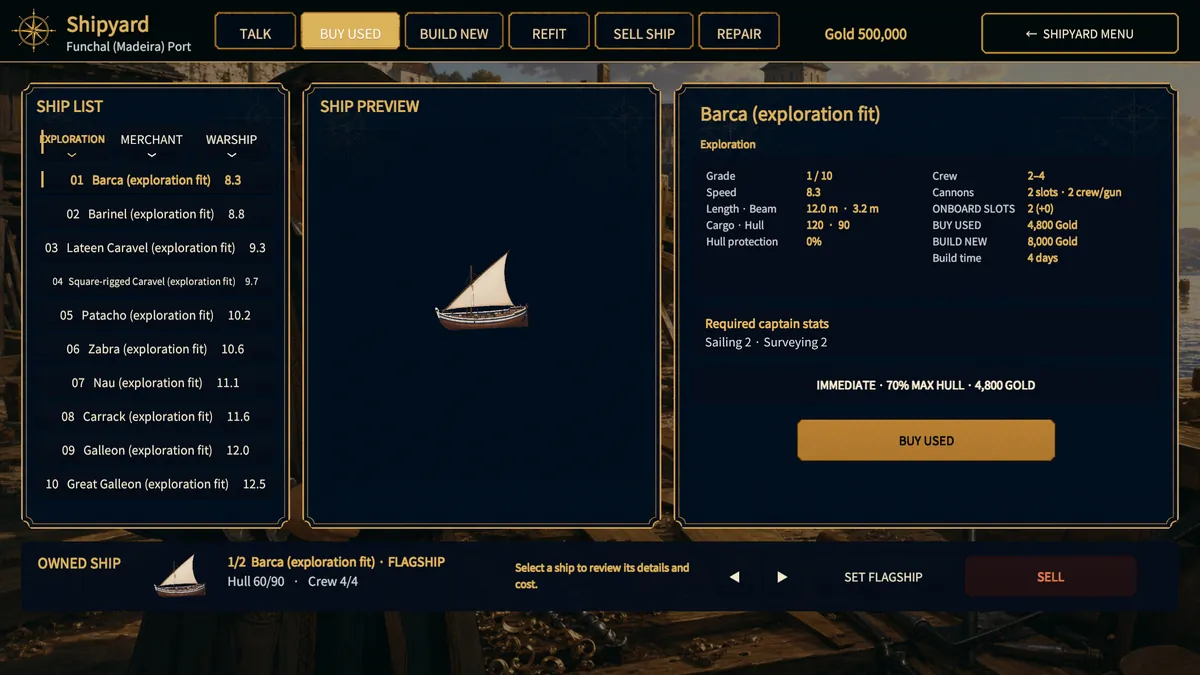
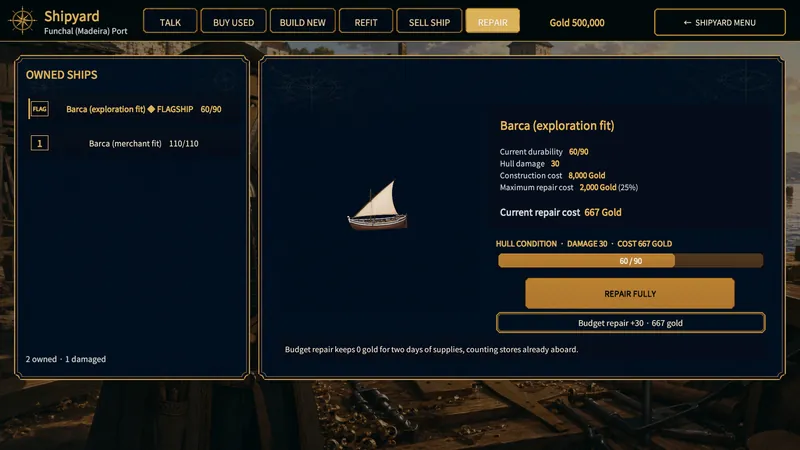
The Shipyard works on the ships themselves. Pick the right ship before you pay, because a new hull, a repair, and a new cannon each solve a different problem.
How to Use
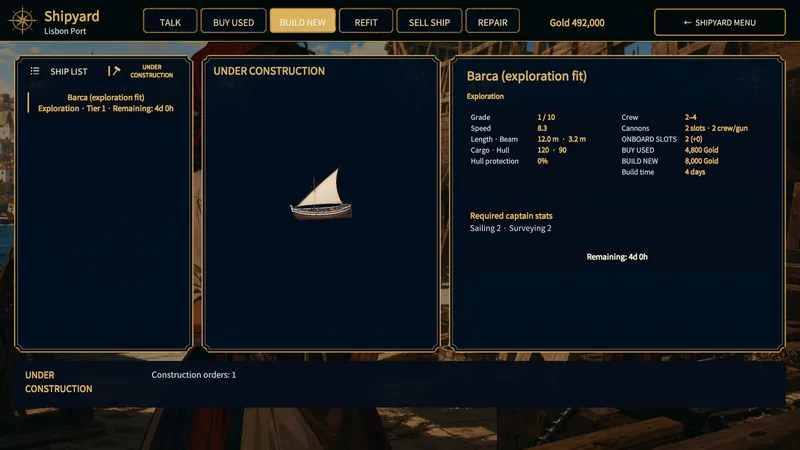
- Choose used ships or new construction, then a ship role. Compare hull limit, cargo, speed, price, captain requirements, and build time. Stock differs by region. Small, medium, and large ports offer ships up to tiers 4, 7, and 10.
- A new order takes the full cost right away and appears under Under Construction with its completion day. After that day, go back to the Shipyard in the port where you ordered it to collect the ship. Owned ships and unfinished orders together count toward the 15-ship limit.
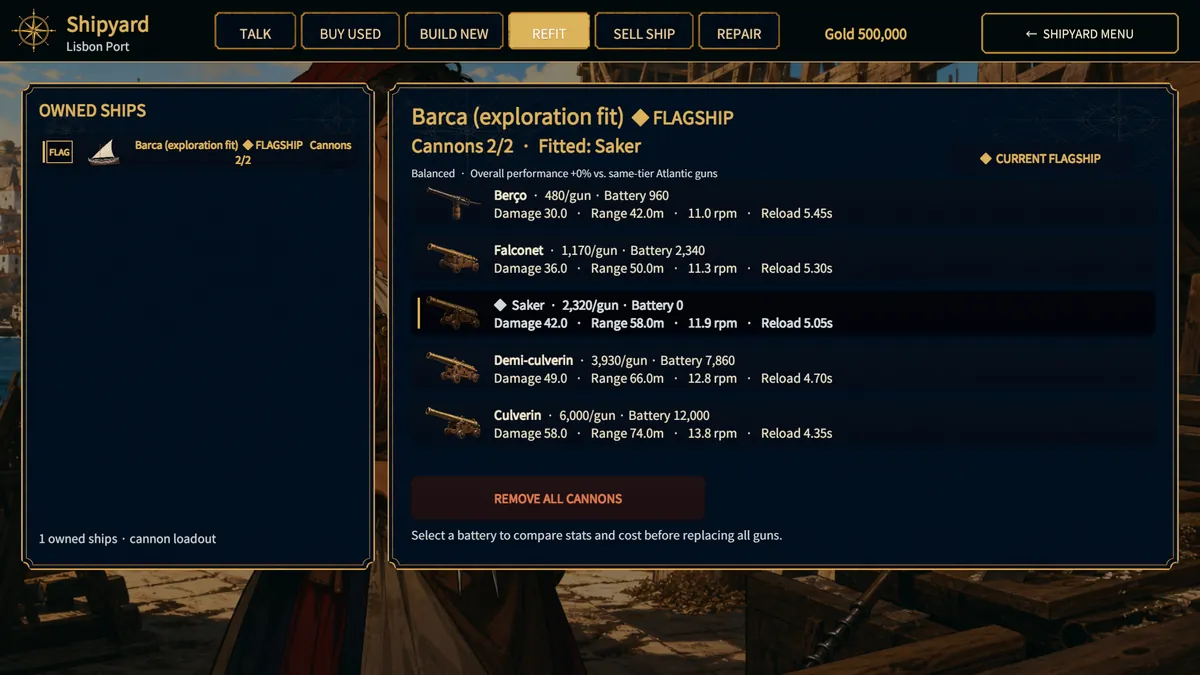
- In Refit, compare the old and new cannons’ damage, range, and firing rate. A battery refit keeps guns that already match and only charges for empty slots or different guns. Check the total cost and remaining gold in the confirmation before you accept.
- Compare a full repair with a repair within budget. Budget repair fixes as much hull as you can afford, while keeping enough gold to cover any shortfall in two days of provisions. Before selling a ship, confirm it is the right one and check the price.
What to Check
- Used ships have a lower maximum hull than new ones. Repairs only restore a ship to its own maximum. Bought and finished ships still need sailors, supplies, and a qualified captain before they can join the sailing fleet.
- If refit or repair isn’t available, check the selected ship, compatible equipment, required gold, and the gold held back for supplies. Budget repair needs a repair amount above zero. Repairing another ship doesn’t repair the flagship.
Game Screen
Contracts and Deliveries
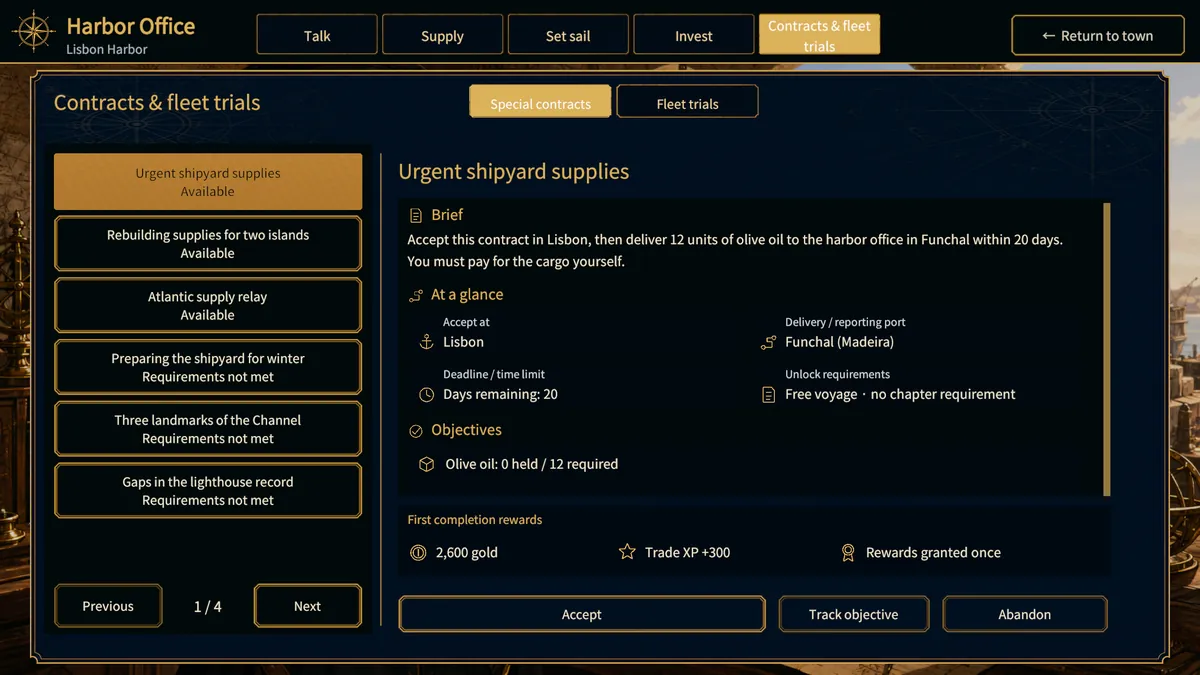
The Harbor Office board offers trade, transport, and survey contracts outside the main story. Before you leave, check where to accept them, their deadlines, and whether goods must be bought at a certain port.
How to Use
- At the Harbor Office, open Contracts & fleet trials > Special contracts and pick an entry. You must meet its issuing port and progress requirements. Anything missing is listed in the details.
- Read the destination, deadline, goods, amounts, survey sites, and battle conditions before accepting. If goods must be bought at a specific port, just owning the right amount isn’t enough.
- Track the contract to find the next destination. For split deliveries, deliver at the current port before moving on to the next stop.
- Once the cargo, survey, and battle requirements are done, deliver or claim the reward at the board in the named port. Finishing the objective doesn’t collect the reward for you.
What to Check
- You can hold three ordinary contracts at once. If you can’t accept another, check your active contracts and deadlines.
- Expired or abandoned contracts can be taken again once you meet the requirements. A contract you’ve already been rewarded for can’t be repeated.
Game Screen
Ship Information
A ship’s role depends on its condition, capacity, crew, equipment, and performance as a whole. This screen shows what needs fixing before your next voyage.
How to Use
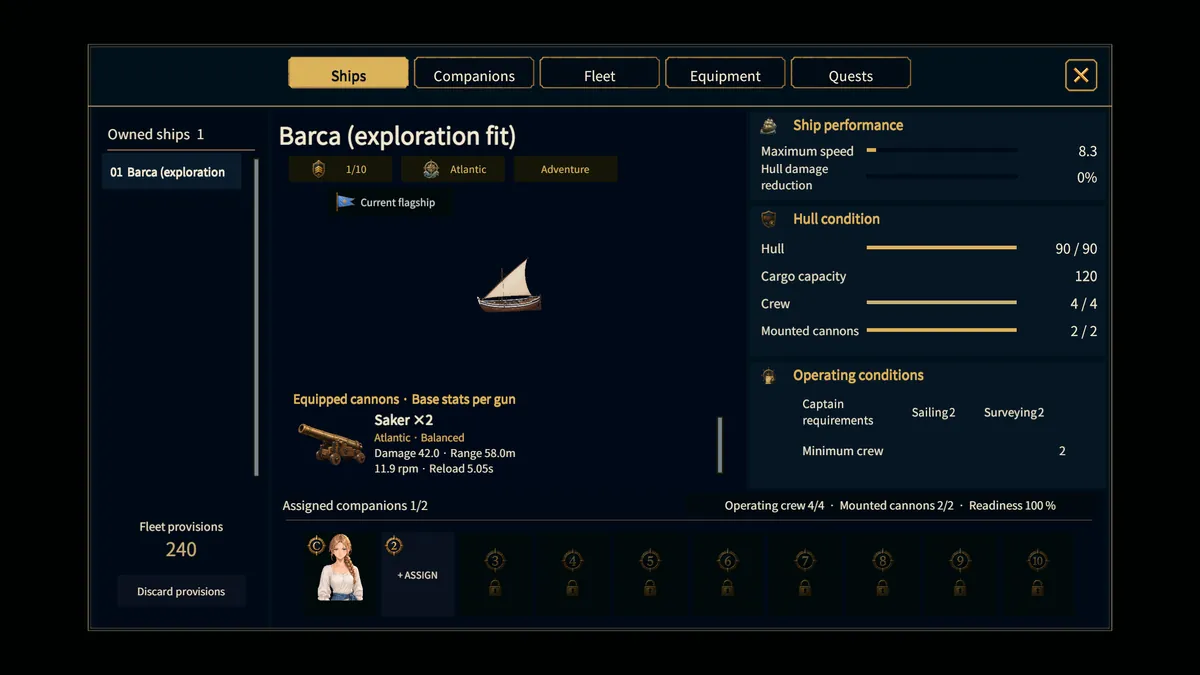
- Open Information > Ships and pick an owned ship. Make sure it is the one you plan to sail or keep in reserve.
- Compare current and maximum hull, and check the crew. Hull damage is fixed at the Shipyard. Missing sailors are hired at the Tavern.
- Check cargo, speed, and the mounted cannons’ damage, range, and reload rate. Then check captain requirements. Every ship needs Sailing. Exploration ships also need Navigation, merchant ships Negotiation, and warships Gunnery. Sailor count decides how many cannons can fire.
- After a repair or refit, come back and select the same ship to confirm the change. Fleet membership is shown separately on the Fleet screen.
What to Check
- Owning a ship doesn’t put it in the sailing fleet. If a ship isn’t following the flagship, check the fleet slots.
- Check hull, crew, and free capacity together. One good number can’t make up for another missing departure requirement.
- Capability sums up the ship, protagonist, equipment, and assigned companions. Readiness sums up current hull, crew, and operable cannons. High capability doesn’t mean every departure requirement is met.
Game Screen
Sailing Fleet
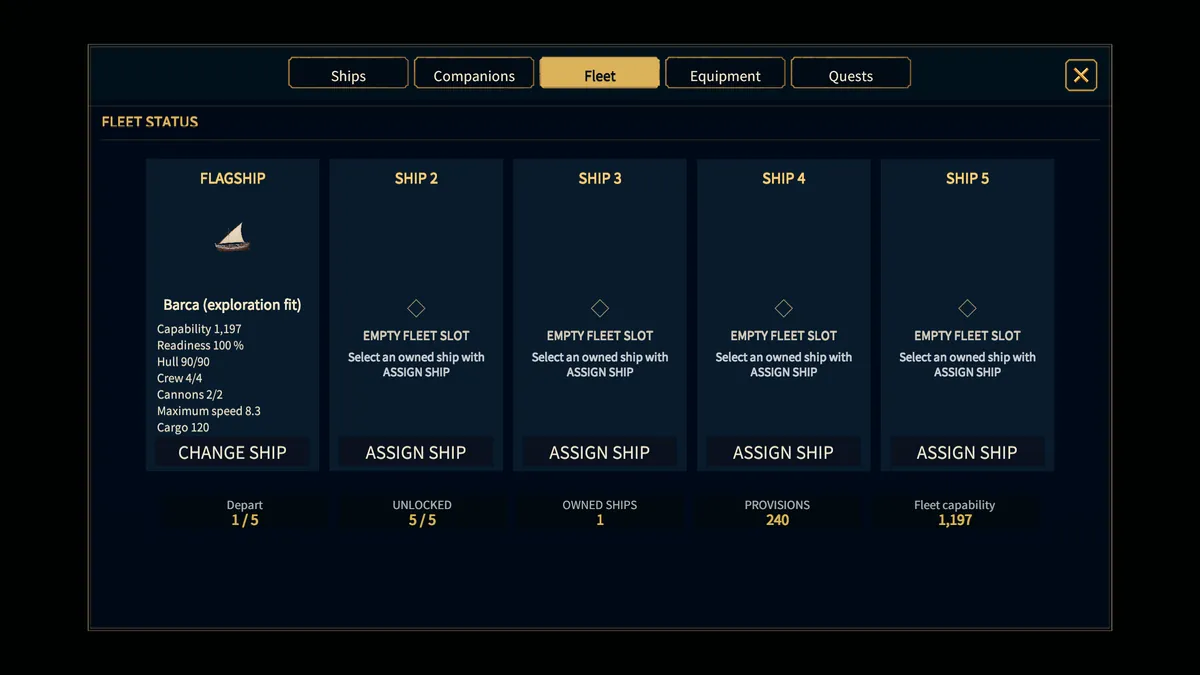
Up to five ships can sail together, flagship included. Other ships you own stay in reserve, where they can serve other plans such as dispatch.
How to Use
- Open Information > Fleet and find the flagship and filled slots. Count the ships set to sail, not every ship you own.
- In Information > Fleet, swap ships in unlocked slots or move escorts to reserve. To change the flagship, replace it with another ship instead of removing it. Up to five ships sail, flagship included. Ships without a reserve setting fill the slots after the flagship in ownership order.
- Every sailing ship needs hull above zero, its minimum sailors, and a qualified captain. The protagonist commands the flagship, and other ships need a companion captain. Check the required and current professional stats shown. After changing the fleet, recalculate provisions at the Harbor Office.
- Keep a suitable ship in reserve if you plan to dispatch. Use Information > Ships to compare reserve ships with those in your sailing fleet.
What to Check
- Five ships includes the flagship. It is not five escorts plus the flagship. In the demo, only the flagship sails and the extra fleet slots are unavailable.
- Ships on dispatch can’t join the sailing fleet. Locked slots can’t be filled, and a ship you put in reserve won’t follow the flagship automatically.
Game Screen
Companion Roles
Each named companion has different attributes and unique skills. How useful they are depends on the role and ship you give them, so recruiting is only the first step.
How to Use
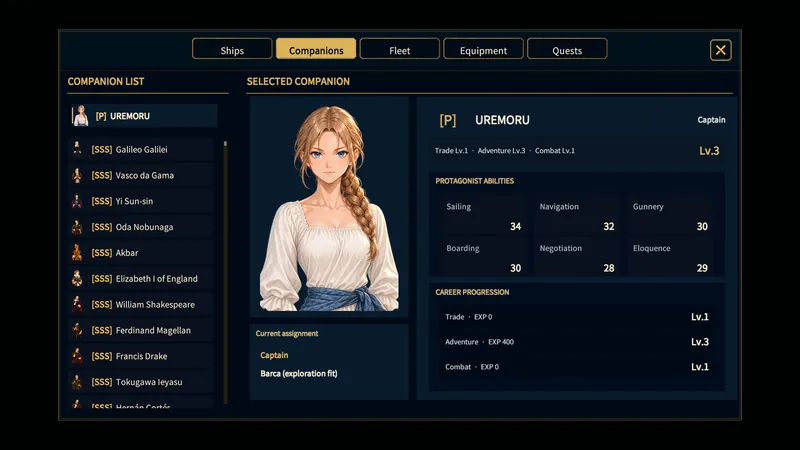
- Open Information > Companions and pick a recruited companion. Read their attributes and unique skill before you decide on a job.
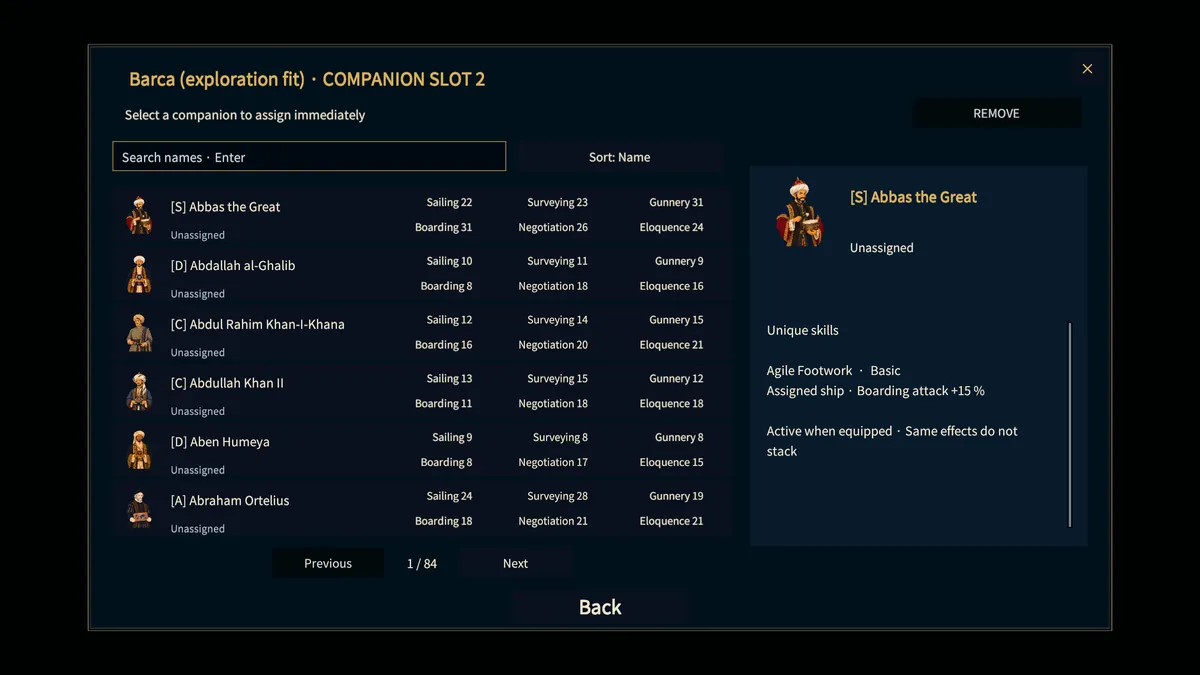
- Pick a ship and slot to assign them. The flagship’s first captain slot is kept for the protagonist. Other captain slots need the ship’s Sailing and role stats. Equipment and growth can help a companion meet them.
- Confirm, then check the ship and slot shown. Moving a companion takes them out of their old slot. Ships or companions on dispatch can’t be changed until you collect the return reward, and companions absent for story reasons can’t be assigned.
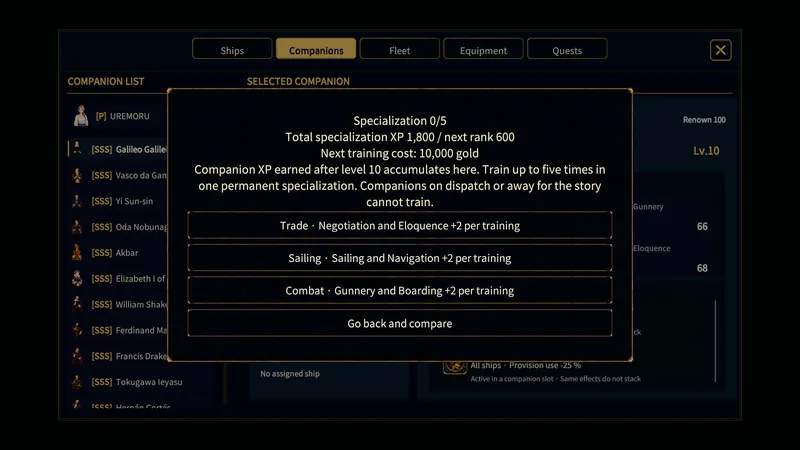
- Once a companion reaches level 10, open the level/mastery entry in their information while in port. Earn mastery experience through further activity, choose trade, sailing, or combat, and pay gold to train. The field you choose is permanent, and there are up to five ranks.
What to Check
- Companions in the active sailing fleet earn experience from trade, exploration, and combat. Companions on reserve ships don’t. Dispatch experience is given when you collect a returning expedition’s results.
- Each mastery rank adds 2 to both professional stats of the chosen field. Rank 1 needs 600 total mastery experience and 10,000 gold. Each rank after that needs 600 more experience and 10,000 more gold than the one before. Companions on dispatch or absent for the story can’t train.
Game Screen
Equipment
Gear only affects the character wearing it. Use the character picker and the slot picker together so an upgrade goes to the right person.
How to Use
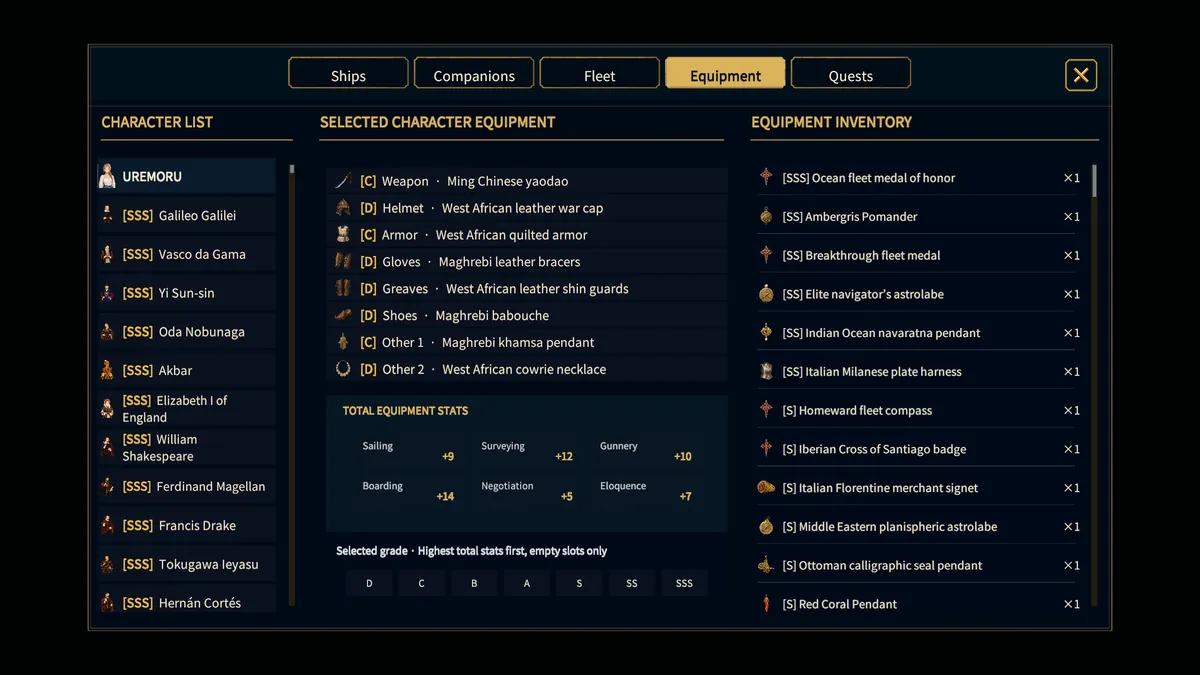
- Open Information > Equipment and pick the captain or a companion. Check their equipped items and total attributes.
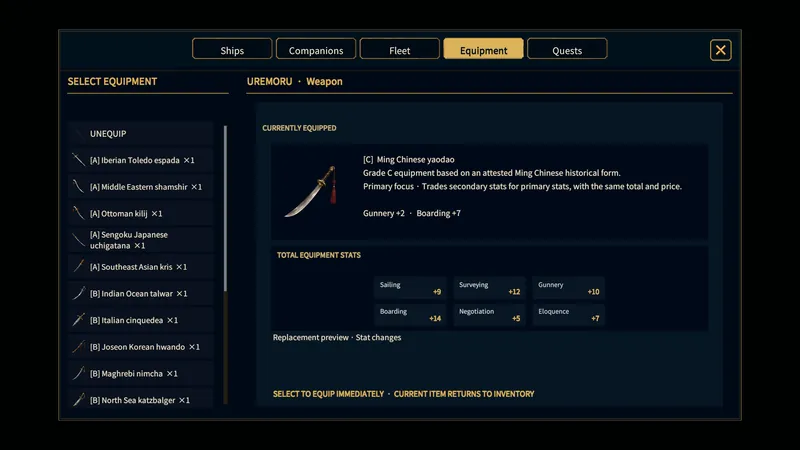
- Pick a slot and compare stored items that fit with the current item. Weigh the Sailing, Navigation, Gunnery, Boarding, Negotiation, and Eloquence bonuses against the character’s role and captain requirements.
- Select the item and confirm. One stored copy is equipped, and the old item goes back to storage. Unequip also returns an item to storage. Check the slot and the new attribute totals before closing the panel.
- If you need another item, buy it at the General Store or go after available rewards. Then come back here to equip it.
- If Fill empty gear slots is available, choose an equipment grade first. It uses compatible unequipped items of exactly that grade and fills only empty slots. Items already equipped stay, so change filled slots by hand if you want a different build.
What to Check
- Rewards and purchases go to storage first. Empty slot auto equip, where available, fills empty slots with the chosen grade and never replaces equipped items.
- If an item is missing from a slot’s list, it may not fit that slot or may not be usable. Ship cannons are changed through ship refits, not character equipment.
Game Screen
Fleet Dispatch
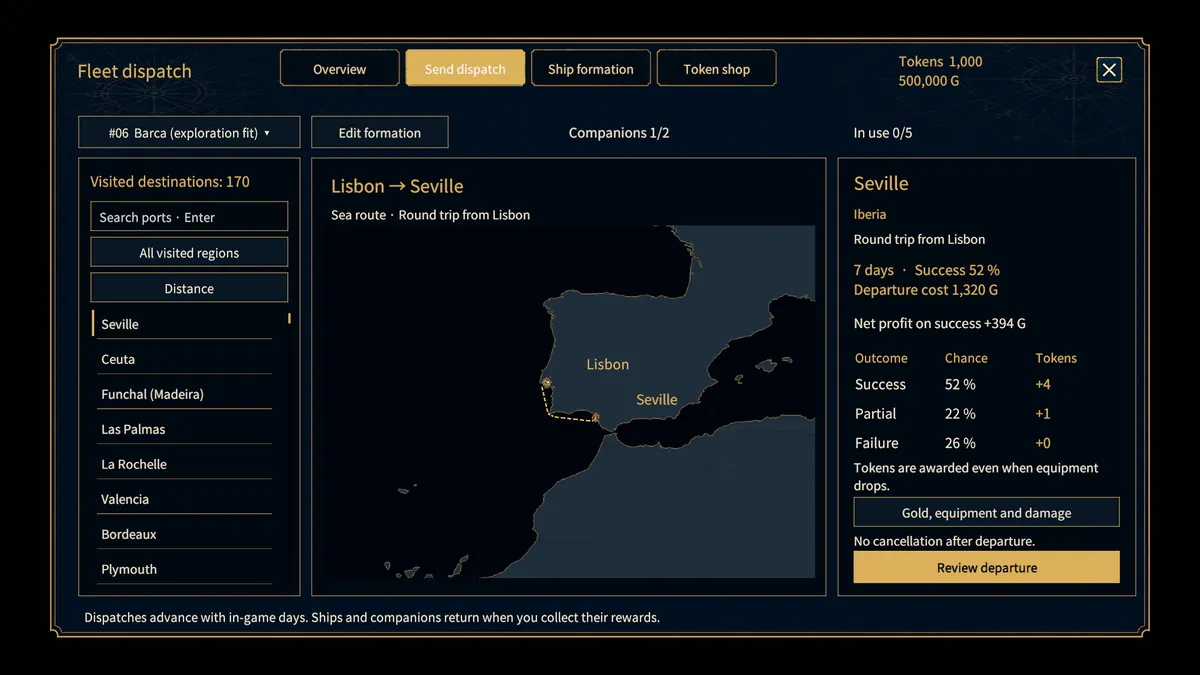
Dispatch sends a reserve ship and companions out to earn rewards while your main fleet keeps sailing. The planner shows requirements, costs, time, and risk before you commit.
How to Use
- Open Fleet Dispatch. Overview lists running and returned missions. Send Dispatch lets you choose any visited destination except Lisbon. Missions are round trips counted from Lisbon. In Story Mode, dispatch slots unlock from chapter 3 and grow to a maximum of five missions at once.
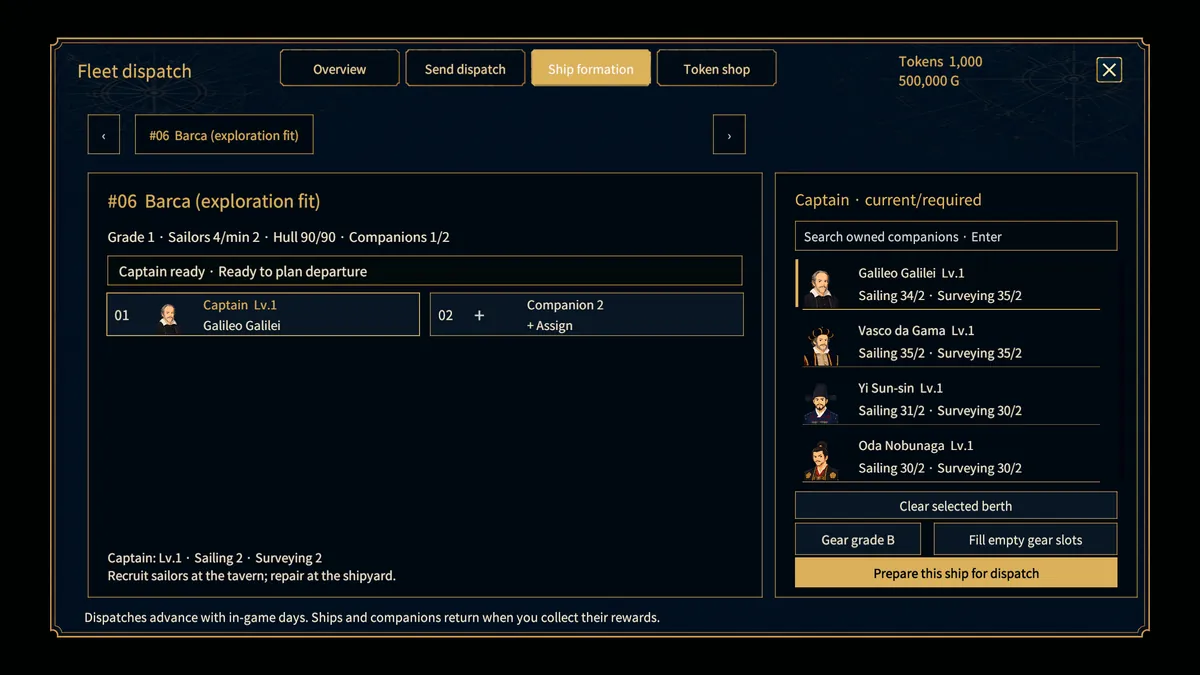
- In Ship Formation, choose a reserve ship that isn’t in your sailing fleet. Put a companion captain in slot 1. Their level must be at least the ship’s tier, and their professional stats must meet its operating requirements. The ship’s hull must be repaired above 1, and it needs at least its minimum sailors.
- Check route days, wage and provision cost, Gold reward, success chance, damage risk, and any unmet conditions. Investing in the destination can improve the quote. Confirm departure only after checking the ship, city, and cost. Once sent, the ship and companions are locked.
- When the completion day arrives, collect the mission in Overview to free the ship and receive the rewards. Gold and companion experience depend on the outcome. Successful missions may also give equipment and an introduction voucher. Every outcome can give shared dispatch tokens, which buy unlocked equipment in Token Shop. Purchases go to storage.
What to Check
- Partial success pays 45% of the Gold reward and may damage the ship. Failure pays no Gold but still gives companion experience. Tokens are 100% of the success amount on success, 40% on partial success, and 10% on failure, rounded down.
- The token shop uses one shared balance, not separate regional tokens. It sells equipment from regions you have visited, and grades unlock based on a visited port’s distance and investment. You buy items directly and can buy them again, 1–99 at a time. SSS equipment isn’t sold. The demo can’t start dispatch missions.
Game Screen
Discovery Reports
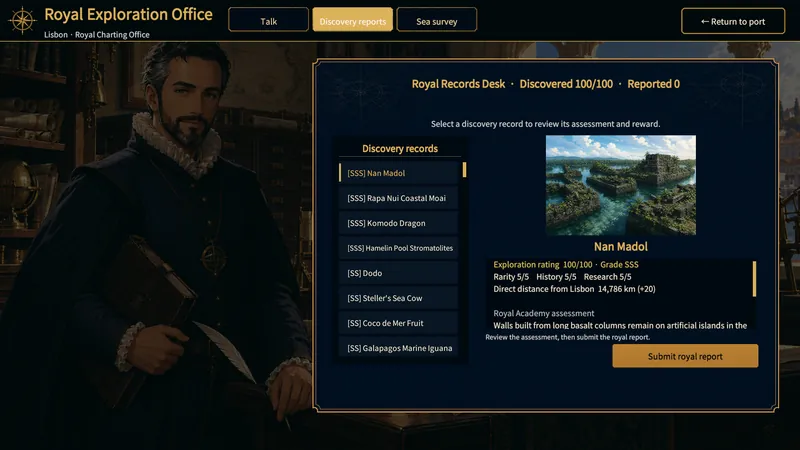
Finding something and reporting it are separate steps. The Royal Exploration Office in Lisbon rates each record and shows the reward before you submit it. Each record pays out only once.
How to Use
- After a discovery, go back to Lisbon and open Discovery Reports at the Royal Exploration Office.
- Pick a found record on the left. Check its grade, score, rarity, and the history, research, or distance factors in its assessment.
- Check the expected Adventure experience and any equipment reward. If a story requirement is listed, meet it before you submit.
- Submit the royal report and check that the record is marked as reported. Look at the experience and items you received before moving to the next record.
What to Check
- An empty list means you have no eligible records to show. Visiting the office doesn’t count as a discovery.
- Each discovery reward can be collected once. A reported record may stay visible for reference, but it won’t pay again.
Game Screen
Sea Survey
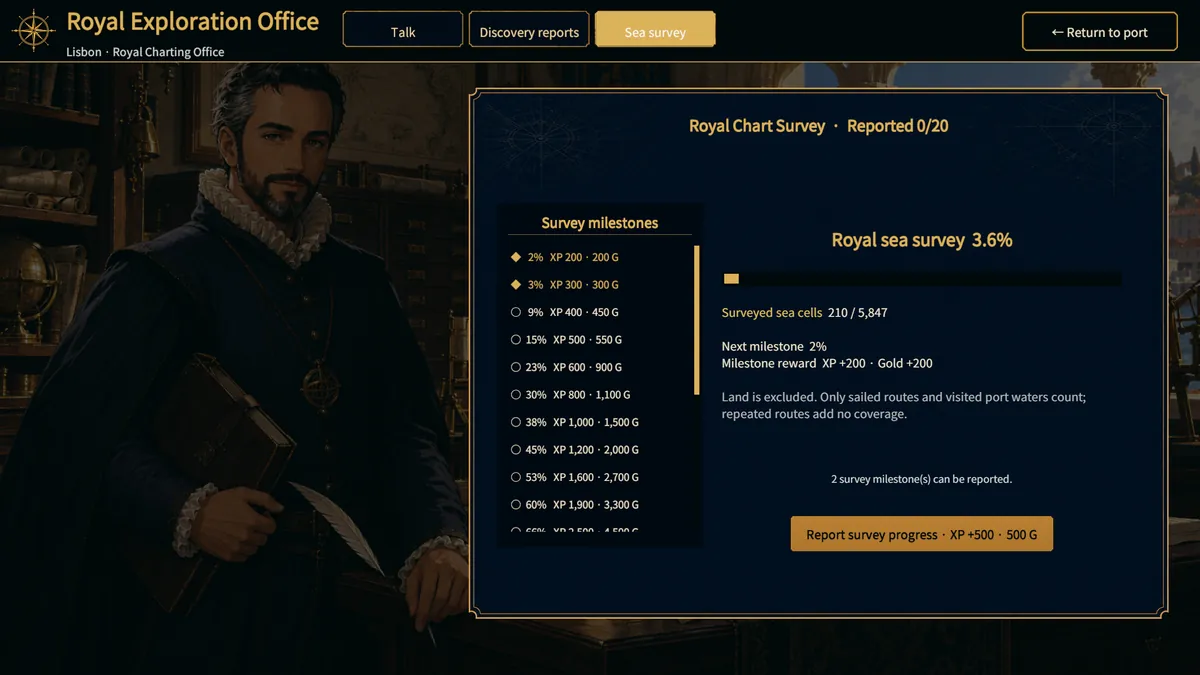
Sea survey tracks how much navigable water you have explored, separately from individual discoveries. The Royal Exploration Office in Lisbon has 20 one-time milestones from 2% to 100%, and you can report every reached, unclaimed milestone at once.
How to Use
- Open Sea Survey at the Royal Exploration Office in Lisbon. Check the surveyed water cells, total surveyable cells, and percentage.
- Sail new sea routes and port approaches to raise coverage. Crossing the same cells again adds nothing, and land doesn’t count.
- When planning an exploration route, check the next milestone and its reward. Milestones run from 2% to 100% coverage.
- When rewards are ready, choose Report Survey Progress. It claims all reached, unreported milestones together and gives the Adventure experience and Gold shown.
What to Check
- If coverage isn’t going up, you may be on a route you’ve already surveyed. Try another stretch of sea instead.
- The amount on the report button is the combined reward you can claim now. Milestones you’ve already claimed don’t pay again.
- Hiding or clearing the sailing trail on the world map doesn’t erase visited ports, explored waters, or survey progress. The trail is only a display, and the exploration record is kept separately.
Game Screen
Captain Progression and Ship Requirements
Your captain levels up commerce, adventure, and battle separately. Ships need certain professional stats to operate, so look at levels, equipment, and assignments together.
How to Use
- Select the player on the information screen to see the three career levels and professional stats. Gain experience through trade profit, sailing and discoveries, or combat.
- Check the captain requirements in ship information. Every ship needs Sailing. Adventure ships also check Navigation, commerce ships Negotiation, and combat ships Gunnery.
- The flagship uses the player’s stats, and other ships use their assigned companion captain’s stats. If a stat falls short, raise it through progression or equipment, or pick another captain.
- Companions gain experience in the active sailing fleet and when you collect dispatch results. Once they reach their level cap, check mastery training in their information while in town.
What to Check
- A companion’s grade alone doesn’t decide which ships they can command. Compare their current professional stats with the ship’s requirements.
- Companions on reserve ships don’t get the main fleet’s activity experience. Dispatch and story absences block assignment and training.
Game Screen
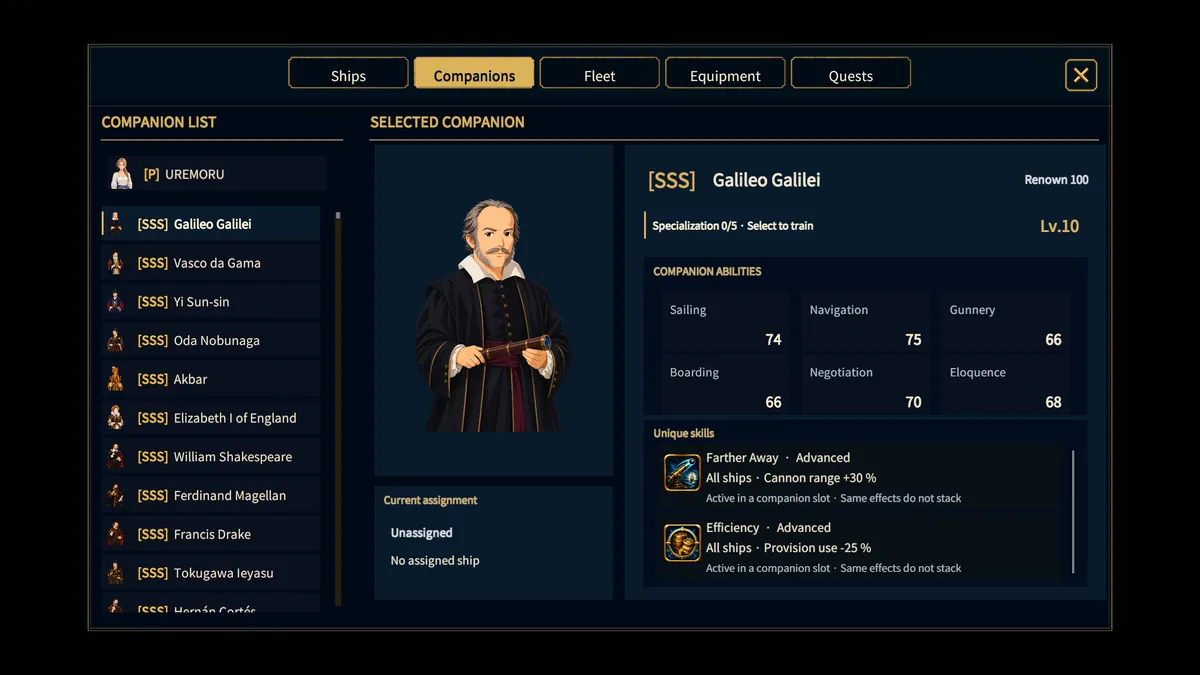
Companion Unique Skills
Unique skills can affect sailing and combat as well as trade, construction, and recruitment. Read what a skill does and where it applies, then put the companion in the active fleet.
How to Use
- Pick a companion under Information > Companions and read their unique skills. Depending on grade, a companion may have no unique skill or several effects.
- For sailing and combat skills, assignment matters. Check whether the skill affects only the companion’s own ship or the whole fleet, then choose a ship that fits.
- For town effects such as trade, construction, ship purchases, movement, or recruitment, make sure the companion is assigned to the current sailing fleet.
- After changing ships or assignments, check ship stats and the related trade, construction, or recruitment screen before you settle on a plan.
What to Check
- Effects of the same type don’t add up. Only the strongest one that applies is used.
- A companion on a reserve ship or dispatch team doesn’t give their unique skills to the main fleet just because you own them.
Game Screen
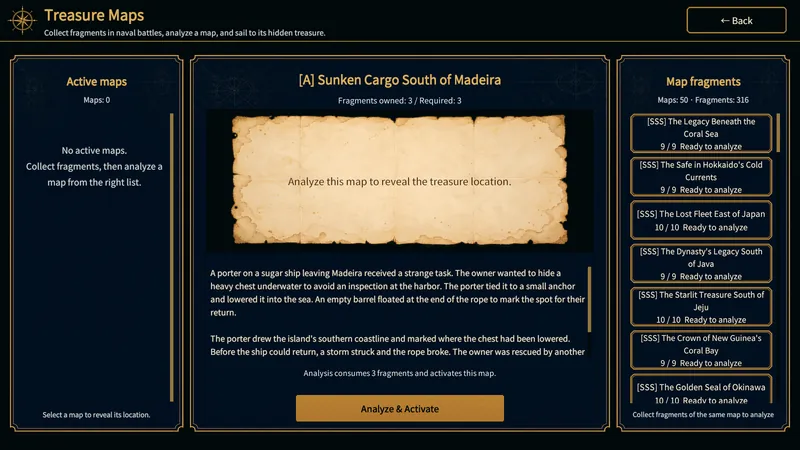
Treasure Maps
Collect fragments by beating pirates, analyze a treasure map, and sail to the waters it shows. Analyzing a map and recovering its treasure are two separate steps.
How to Use
- After defeating pirates, check the reward screen for map fragments. Drops aren’t guaranteed, and each map needs its own number of fragments.
- Open the treasure map button on the town or sailing HUD. Pick a map in the fragment list on the right and compare the fragments you own with the number needed.
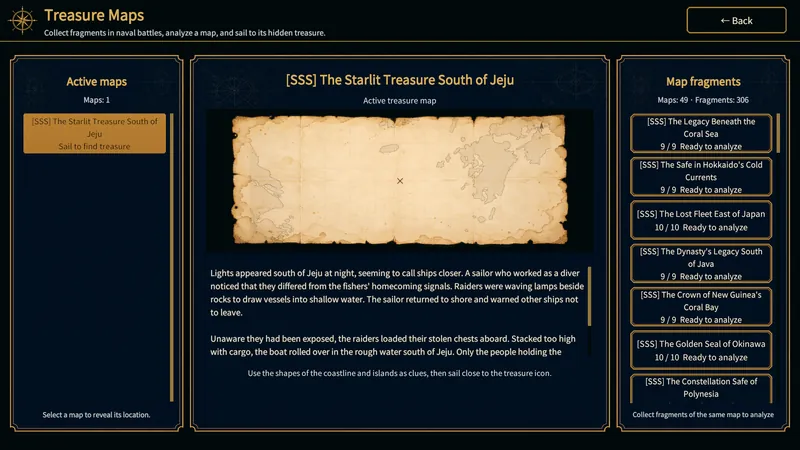
- With enough matching fragments, analyze the map to activate it. This uses up the fragments and moves the map to the active list on the left.
- Use the active map’s picture and story to find the area. Sail close enough to the marked spot and the treasure is recovered automatically. Then check the reward window for gold, adventure experience, and equipment.
What to Check
- You can’t analyze a map without enough fragments, or activate one that is already active. In demo Free Play, fragment drops, map activation, and treasure recovery only work for allowed maps inside the demo sea region. The grade of a map’s equipment reward doesn’t block activation.
- Activating a map doesn’t give you its treasure. You have to reach the spot and recover it. After recovery, you can collect fragments again to repeat the map.
Game Screen
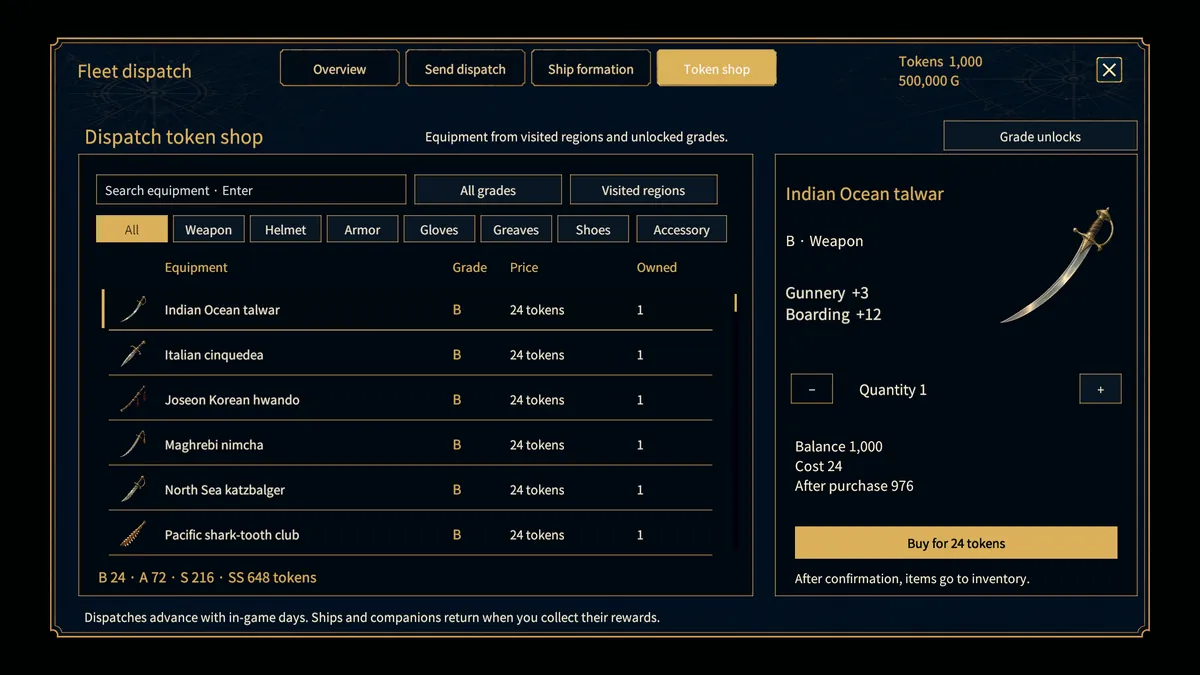
Dispatch Token Shop
Tokens from dispatch results go into one shared balance. In the dispatch token shop, you pick the exact item and quantity to buy.
How to Use
- Collect a returning dispatch team’s results to get tokens. The amount depends on the outcome. Your balance shows on the dispatch screen.
- Open the dispatch token shop and filter by name, grade, visited region, or equipment slot. Only equipment from visited regions and unlocked grades is listed.
- If a grade is locked, open the grade unlock guide. Meeting the distance and city investment conditions at a visited port unlocks that grade across the whole shop.
- Check professional stats, quantity, token cost, and your balance after buying, then confirm. Items go to inventory. Equip them on the player or companions in Information > Equipment.
What to Check
- Tokens are one shared currency, not separate regional wallets. Spend that balance to buy listed items directly.
- You can buy available items more than once. If the list is empty, check your search and slot filters, visited regions, and grade unlocks.
Game Screen
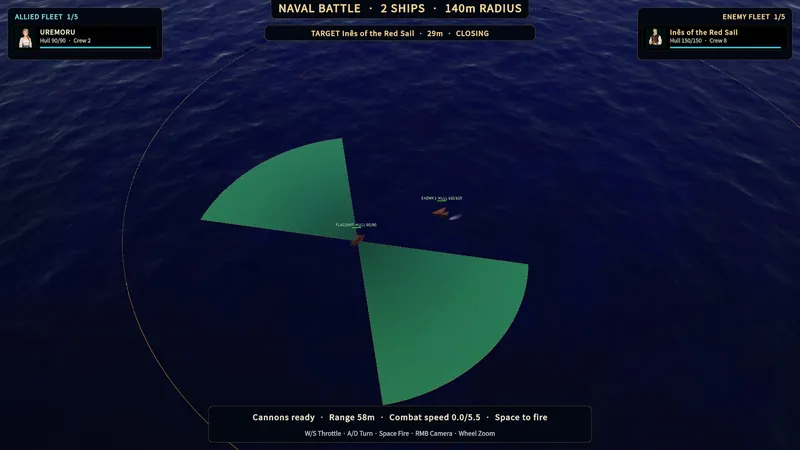
Naval Combat, Boarding, and Retreat
You steer and fire the flagship yourself, while the rest of your fleet fights on its own. To land hits, you need a firing position, the right range, and loaded guns all at once.
How to Use
- Check the hull and crew panels for both sides. Look at the tracked target’s distance and whether it is opening or closing.
- Use W/S for throttle and A/D to turn. Bring the enemy alongside your port or starboard broadside instead of pointing your bow at it.
- Compare the distance with your cannon range, and use the colored firing arcs to aim. Wait for the reload indicator, then press Space to fire.
- Reposition while reloading. Drag with the right mouse button to rotate the camera and use the wheel to zoom, so you can follow both fleets. After the battle, repair the hull and replace lost crew in port.
- If the flagship collides with an enemy ship, boarding starts automatically. Both sides lose crew over several rounds, and Boarding abilities affect the result. There is no separate boarding menu, so avoid contact if you don’t want to board.
- Read any special mission conditions before you attack. Capture objectives require boarding the marked target, not sinking it. All-allies-survive missions fail if you lose an allied ship. Identification and supply-cut operations have their own protected ships, phases, and objectives, so follow the battle prompt instead of sinking every ship.
- To retreat, keep the flagship outside the battlefield boundary for five seconds in a row. Going back inside resets the countdown. Retreating ends the fight without a win and may leave the story objective unfinished.
- After a win, check the reward panel for Gold, recovered cargo, battle experience, and possible treasure map fragments. Cargo that doesn’t fit is turned into Gold. Damage and crew losses stay. If you lose, you are sent back to a nearby port and lose your carried Gold, provisions, and trade cargo. Bank deposits and character equipment are kept. Repair, recruit, resupply, and claim any eligible insurance before you sail again.
What to Check
- If shots don’t connect, check range and the firing arc first. A target you can see may still be out of reach.
- If the guns won’t fire, check reload status and your mounted cannons. Keep an eye on hull and crew while you line up the next shot.
- If an allied ship blocks the line of fire, the guns won’t fire even with the target in range. Move so your allies stay out of the firing lane.
Game Screen
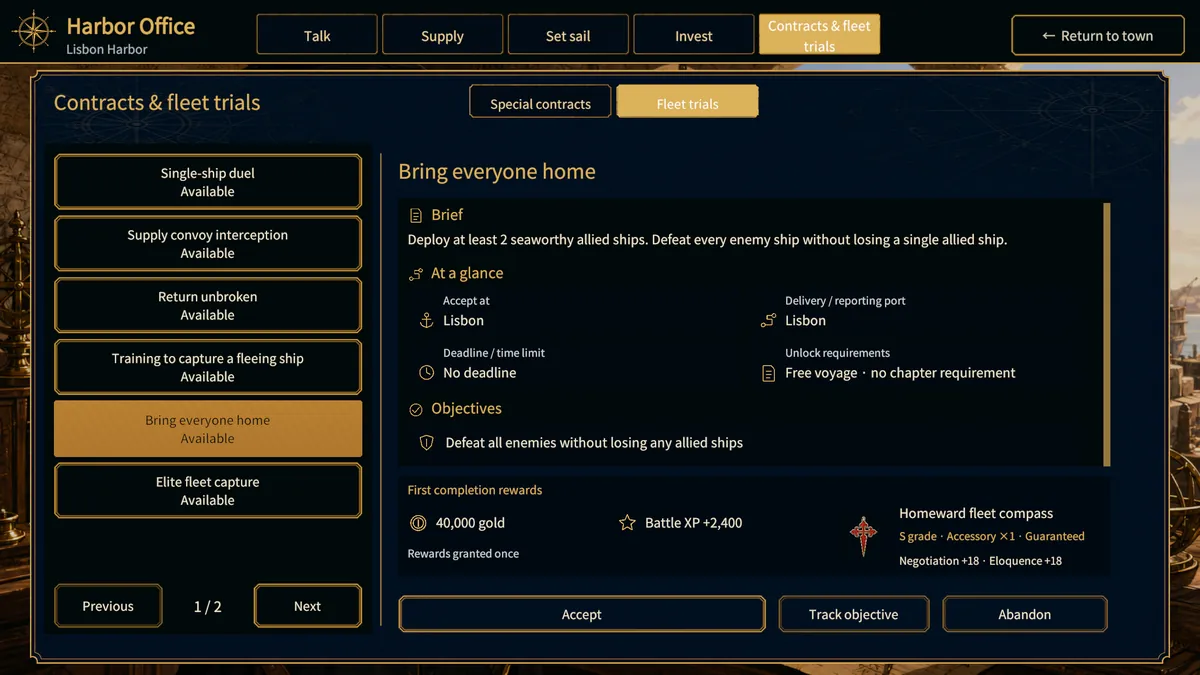
Fleet Challenges
Fleet challenges are practice battles against fixed enemy fleets, each with special win conditions. Get the required fleet size and condition ready, and claim the reward at the board after you win.
How to Use
- At the Harbor Office, open Contracts & fleet trials > Fleet trials. Check the issuing port, story progress, flagship grade, and other listed requirements before accepting.
- Before starting, check the minimum and maximum allied ships, hull condition, and minimum crew. Fix any unmet conditions shown in the details.
- Read the battle objective first. A challenge may ask you to defeat the enemy, capture a ship, keep every ally alive, finish within a time limit, or keep your hull above a certain level.
- Win without breaking any required condition, go back to the Harbor Office, and claim the reward. Clearing the battle and collecting the reward are tracked separately.
What to Check
- Hull and crew losses in practice don’t carry over to your real fleet, and you don’t get normal naval loot.
- Sinking a capture target or breaking a survival, hull, or time condition means failure. You can retry a failed challenge, but its completion reward is given only once.
Game Screen
Cannon Refits and Gun Crews
Cannons are fitted to each ship, and the models on offer depend on region and port size. Compare damage, range, reload time, and the crew the battery needs.
How to Use
- Select an owned ship in the shipyard’s refit screen. Check its flagship marker, current cannons, and total cannon slots.
- Compare damage, range, rounds per minute, reload time, and regional traits. Damage per shot alone doesn’t show how good a battery is.
- Pick a cannon and check the total battery cost and remaining gold in the confirmation window. Matching cannons are kept, while empty slots and different cannons count toward the cost.
- After the refit, check mounted and operable cannons in ship information. A full battery can’t all fire without enough crew, so hire sailors at the Tavern if needed.
What to Check
- The minimum crew to sail is not the same as the crew needed to fire every cannon. Check both before a fight.
- For other cannon models, visit shipyards in other regions or larger ports. If you remove every cannon, the ship can’t fire until you refit it.
Game Screen
Saves and Settings
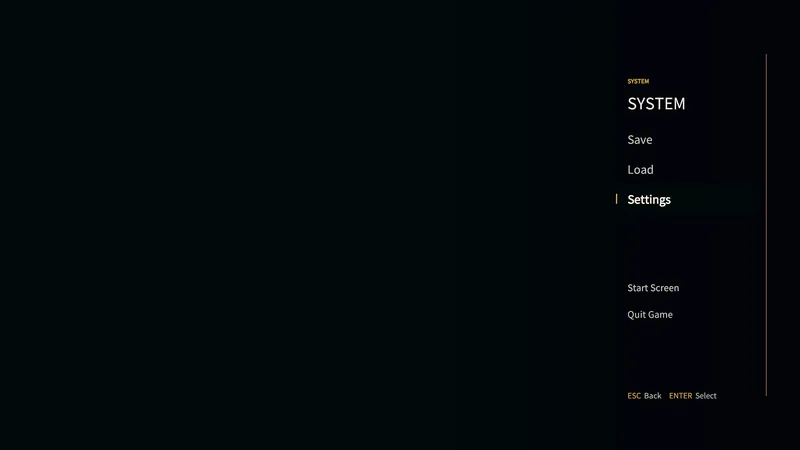
The system menu, in town or at sea, handles each mode’s local saves and the optional Google Drive shared saves. Save your current progress before loading another record.
How to Use
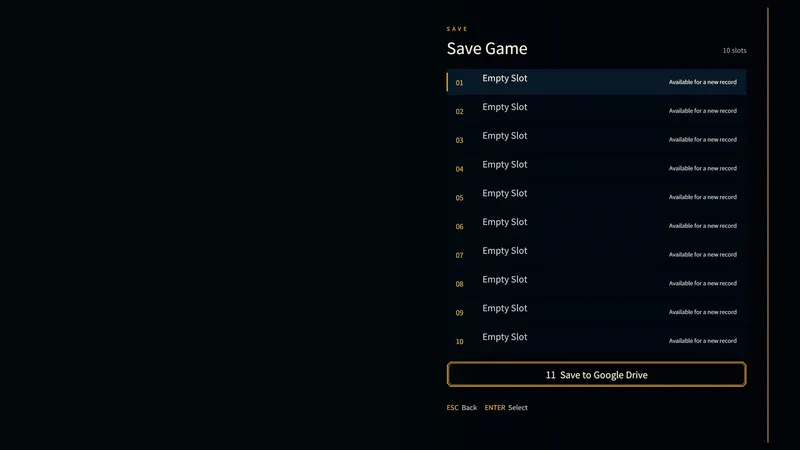
- Open the system menu from the HUD and choose Save. Pick one of the ten manual slots, check its current name, and confirm only the slot you mean to replace.
- Story Mode and Free Play each have their own automatic save and manual slots 1–10. Saving to a slot number in one mode doesn’t overwrite the other mode’s save with the same number. Check the current mode and slot name before saving.
- To load, pick a filled slot and read the confirmation. Loading restores that save’s progress and mode, and anything since your last save is lost.
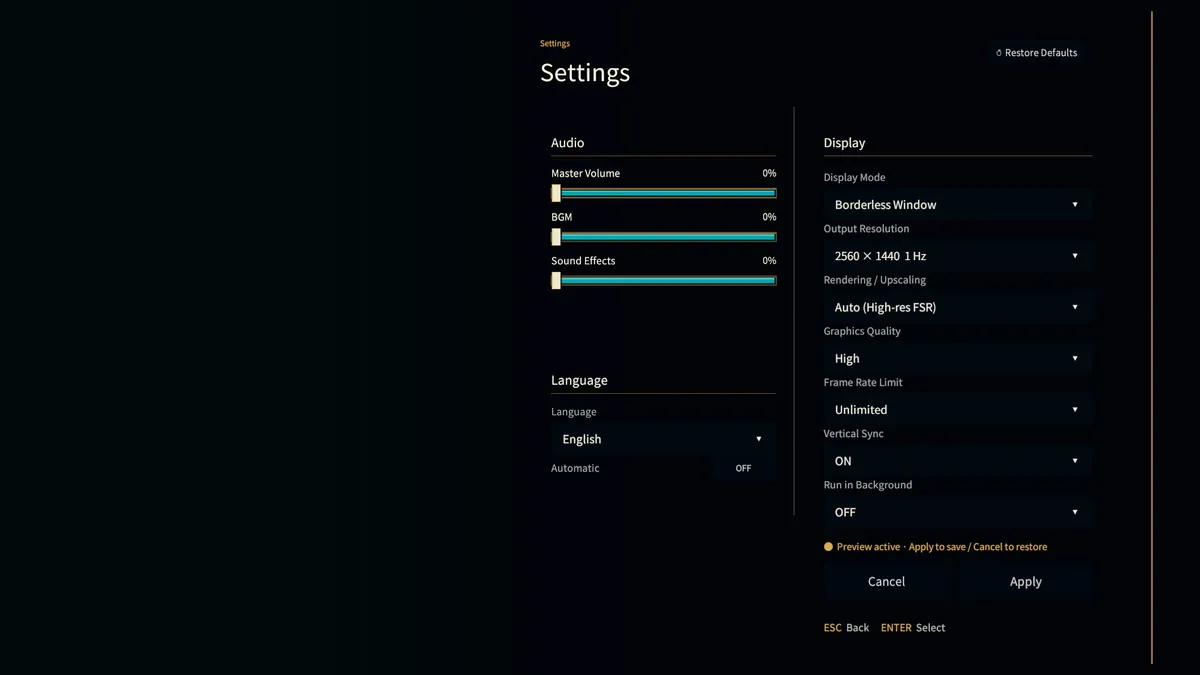
- Adjust language, display, sound, and background running in Settings. Master, music, and effects volume are separate, and your choices stay after a restart. Follow the on-screen controller prompts. Steam can show an on-screen keyboard for name entry.
- Choose a language yourself, or turn on automatic language to follow your system language. On Windows, you can compare display mode, output resolution, graphics quality, upscaling, frame rate cap, and VSync. Lower quality or a faster upscaling mode can lower rendering cost. The available options differ by platform.
- Changes preview while the panel is open. Apply keeps them, and Cancel brings back the values from when you opened the panel. Restore Defaults loads the default values for review, so check language, display, and all three volume sliders before you apply.
What to Check
- You can’t load an empty slot. If Continue is unavailable on the title screen, check whether that mode has an automatic save.
- Starting a new journey can overwrite that mode’s automatic save, so keep important journeys in a manual slot. Shared slot 11 needs the full edition, an internet connection, Google permission, and manual upload and download. A local save alone is not a cloud backup.
Game Screen
Google Drive Shared Saves (Slot 11)
The full Windows edition and the Google Play Android edition can share progress through Google Drive app data on the same Google account. This isn’t available in the demo, needs internet access, and only works when you save and load on purpose. Story and Free Play records in slot 11 are kept separate.
How to Use
- In town or at sea, open Save or Load from the system menu and pick Google Drive slot 11. From the title screen, choose the mode under Load first. Use Connect Google each time you start the game, with the same Google account on both devices.
- Read the connection guide. On Google’s permission screen, tick the Google Drive app data box and choose Continue. If you didn’t grant that permission, connect again and tick it.
- On the device you’re sending progress from, open Save > slot 11, check the account and mode, and choose Save this progress. Wait for the Saved to your Google Drive message. Saving only to local slots 1–10 doesn’t move progress to another device.
- On the other device, connect the same account and open Load > slot 11 in the same mode. Refresh saves, check the date, pick a record with Older/Newer, and choose Load selected save. Loading replaces unsaved progress, so make a local save first.
What to Check
- If another device saved newer progress, refresh and check the records before saving again. An error can appear even after an upload has finished, so refresh before you retry. Also check your internet connection, Drive storage, and permission.
- Slot 11 is a cloud record, not a local slot. New saves are added as revisions instead of replacing old records, and you can pick from the latest 100 in the list. Disconnecting doesn’t delete Drive records. If the list is empty, check the account and mode.
Game Screen